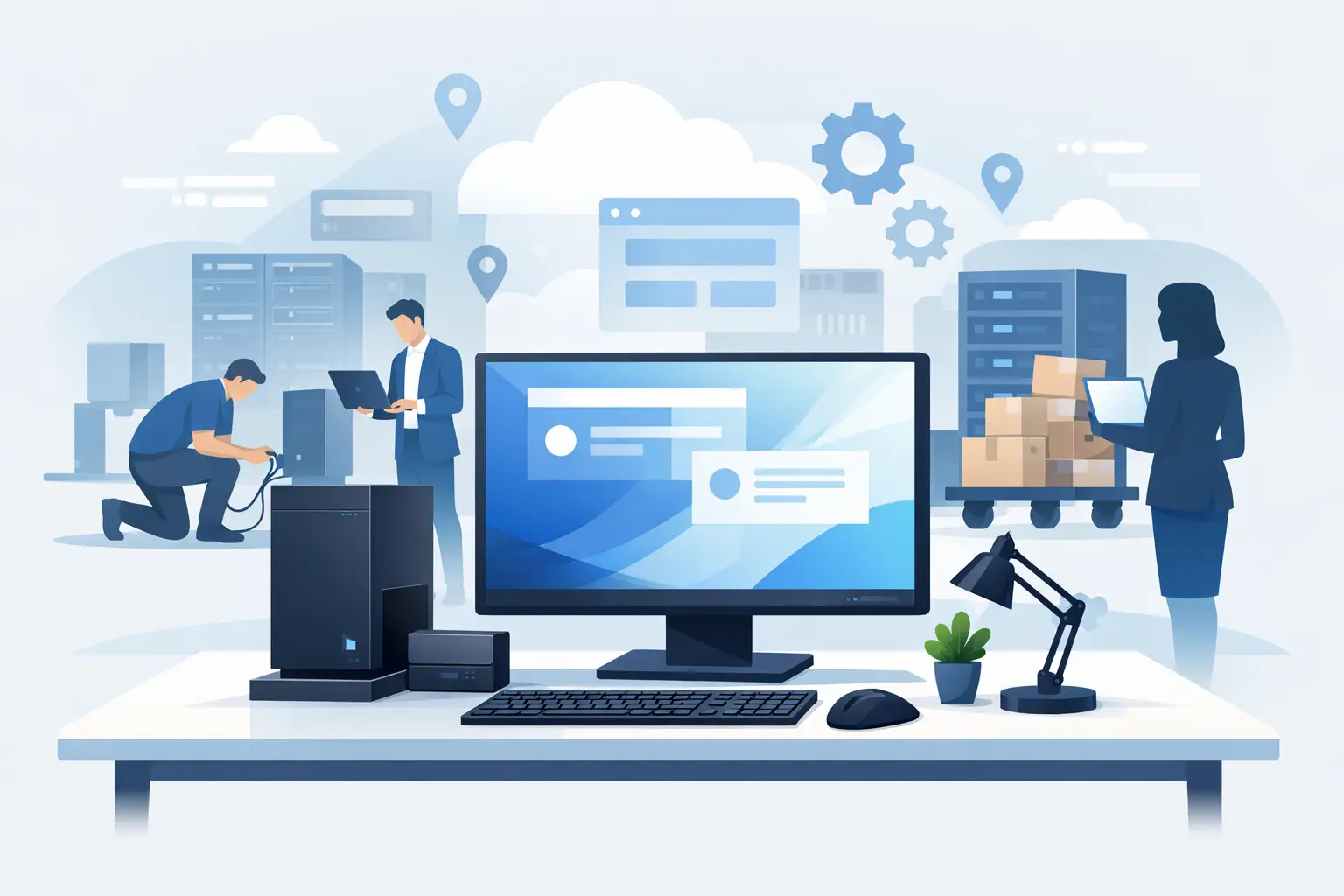
A new employee’s first hour should not begin with a laptop that cannot reach the Wi-Fi, an expired Microsoft 365 password, or missing access to the applications they need. Effective business PC setup and deployment turns a new device into a productive, secure workstation before it reaches the employee’s desk.
For small and midsize businesses, this work is easy to underestimate. Buying a computer is straightforward. Preparing it correctly for your network, users, security policies, phone system, cloud applications, and support process is where details matter. A missed setting can become a help desk issue, a security exposure, or a frustrating first impression for a new hire.
Why Business PC Setup and Deployment Needs a Process
PC deployment is not just software installation. It is a repeatable business process that protects company information while giving employees what they need to do their jobs. The goal is consistency: every approved device should meet the same baseline for security, performance, access, and documentation.
Without a standard process, setup often happens under pressure. A manager announces a new hire days before their start date. Someone finds an unused laptop, creates a login, installs a few programs, and hopes the employee can get started. That approach may work temporarily, but it creates gaps that surface later: unlicensed software, unknown local administrator passwords, missing backups, outdated operating systems, or former employees still listed as device owners.
A managed deployment process reduces these risks. It also makes growth easier. Whether you are preparing one workstation for an office administrator or equipping an entire department after an expansion, your team should know what to expect and where to get help.
Start With the Role, Not the Device
The right computer depends on the employee’s work. A receptionist, bookkeeper, field sales representative, and design professional may all need different hardware, applications, permissions, and accessories. Standardizing your preferred models is valuable, but a single device configuration is not always the best fit.
Before ordering or assigning a PC, confirm the employee’s role, work location, required applications, expected travel, and access needs. An employee who works primarily from the office may benefit from a desktop with dual monitors and a wired network connection. A hybrid manager may need a lightweight laptop, docking station, encrypted storage, and reliable remote access. Staff working with large files, reporting tools, CAD applications, or media require more memory, processing power, and storage than basic office users.
This planning step prevents two costly outcomes: purchasing more computer than a role requires or deploying a machine that slows the employee down from the start. It also gives leadership a clearer view of technology costs as staffing changes.
Standardize What You Can
Standardization does not mean every employee receives identical equipment. It means your business uses a manageable set of approved devices, operating system versions, accessories, and software packages. This simplifies support, replacement planning, warranty tracking, and employee training.
It is also easier to keep a small number of approved models patched and properly configured than a collection of personal devices and one-off purchases. When a replacement is needed, support staff can prepare it quickly because the configuration is already defined.
Build Security Into Every PC From Day One
A new PC is a new endpoint on your business network. It should be protected before the employee begins using it, not after an issue occurs. Security setup should reflect your company’s risk level, industry requirements, and work environment.
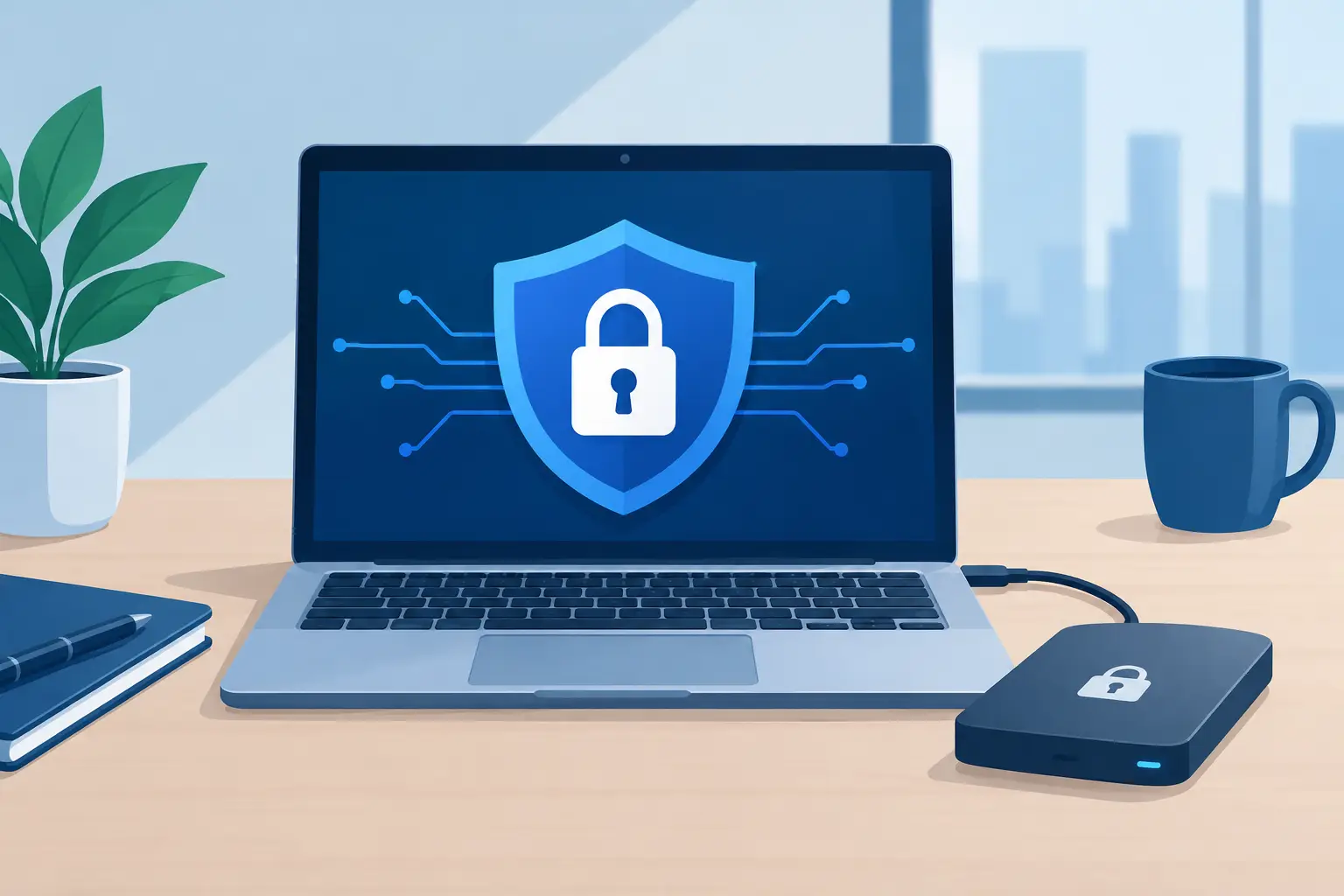
At a minimum, a properly deployed business computer needs current operating system updates, endpoint security software, device encryption, strong sign-in controls, and managed user permissions. Multi-factor authentication should protect cloud accounts and remote access. Employees should generally work from standard user accounts rather than local administrator accounts, since unrestricted permissions make it easier for malware or accidental changes to spread.
Backup and recovery deserve attention as well. Many teams assume files are protected because they use cloud storage, but protection depends on how data is stored, synced, retained, and restored. A deployment plan should make clear where company files belong and how an employee’s device will be recovered if it is lost, damaged, or compromised.
Security is not a one-time checklist. Devices need continuing patching, monitoring, and review. That is one reason businesses benefit from working with an IT partner that remains accountable after installation rather than treating deployment as the end of the engagement.
Configure Access Before the Employee Arrives
A productive workstation is connected to the systems that power the business. Depending on the role, that may include email, shared files, accounting platforms, customer relationship management software, phone applications, printers, line-of-business tools, and secure remote access.
Provisioning those accounts ahead of time prevents the new employee from waiting while different vendors, departments, or administrators sort out credentials. It also reduces the temptation to share passwords or use another person’s login when access is delayed.
Access should follow the principle of least privilege: employees receive the permissions required for their responsibilities, but not broad access simply because it is convenient. This matters especially for financial systems, customer records, executive files, and administrative tools. A well-managed onboarding process documents who approved access and makes it easier to remove that access promptly when roles change.
For businesses with office and remote staff, test the complete experience. Can the employee connect to the office network? Can they securely access approved tools from home? Does the softphone work? Are shared folders available? A device can appear fully configured while still failing in the location where the employee will actually work.
Test the Whole Workday, Not Just the Login Screen
Before a PC is delivered, someone should verify more than whether it turns on. Test the user account, email, core applications, internet connection, printer access, webcam, audio, and any required VPN or remote desktop tools. If the employee uses a dock, multiple monitors, headset, scanner, or specialized peripheral, test those items together.
This final quality check is where many avoidable interruptions are caught. A laptop may recognize one monitor but not two. A phone application may install correctly but lack the correct calling permissions. A printer may be visible but not configured with the right scanning destination. Small problems multiply quickly when discovered during a busy employee’s first morning.
Documenting the assigned device is equally important. Keep a record of the device serial number, assigned user, purchase date, warranty status, installed licenses, and relevant accessories. Good records support future troubleshooting, insurance documentation, audits, refresh planning, and employee offboarding.
Plan for the Full Device Lifecycle
Deployment and offboarding should be connected. The same discipline used to prepare a computer for a new employee should guide what happens when an employee leaves, changes roles, or receives a replacement device.
When a user leaves, access must be removed promptly, company data must be retained according to policy, and devices must be collected and assessed. A returned PC should not simply be handed to the next hire. It needs to be securely wiped or reimaged, inspected, updated, and reassigned through the same controlled setup process.
Refresh planning also prevents surprise expenses and downtime. Most businesses should track device age and performance rather than waiting for widespread failures. The ideal replacement schedule depends on workload, warranties, operating system support, and budget, but planning ahead lets you replace devices on your terms instead of during an emergency.
When Internal Setup Is Enough and When It Is Not
A very small company with a few simple cloud applications may handle occasional PC setup internally. That can be practical if the person responsible has enough time, follows documented standards, and understands the security requirements. The trade-off is that setup work competes with their primary responsibilities, and consistency can decline as the company grows.
Outside support becomes especially valuable when you have regular hiring, remote workers, compliance needs, multiple locations, specialized software, or no dedicated internal IT team. A managed provider can coordinate purchasing, configuration, deployment, asset records, onboarding, cybersecurity tools, and ongoing support as one connected service.
For Central Florida businesses, TechFusion helps make PC deployment part of a dependable technology foundation, not a recurring scramble before each new hire. The focus is on preparing users to work confidently while keeping systems managed after the device is delivered.
The best time to improve your PC deployment process is before the next start date appears on the calendar. A clear standard today gives every future employee a better first day and gives your business fewer technology surprises to manage.