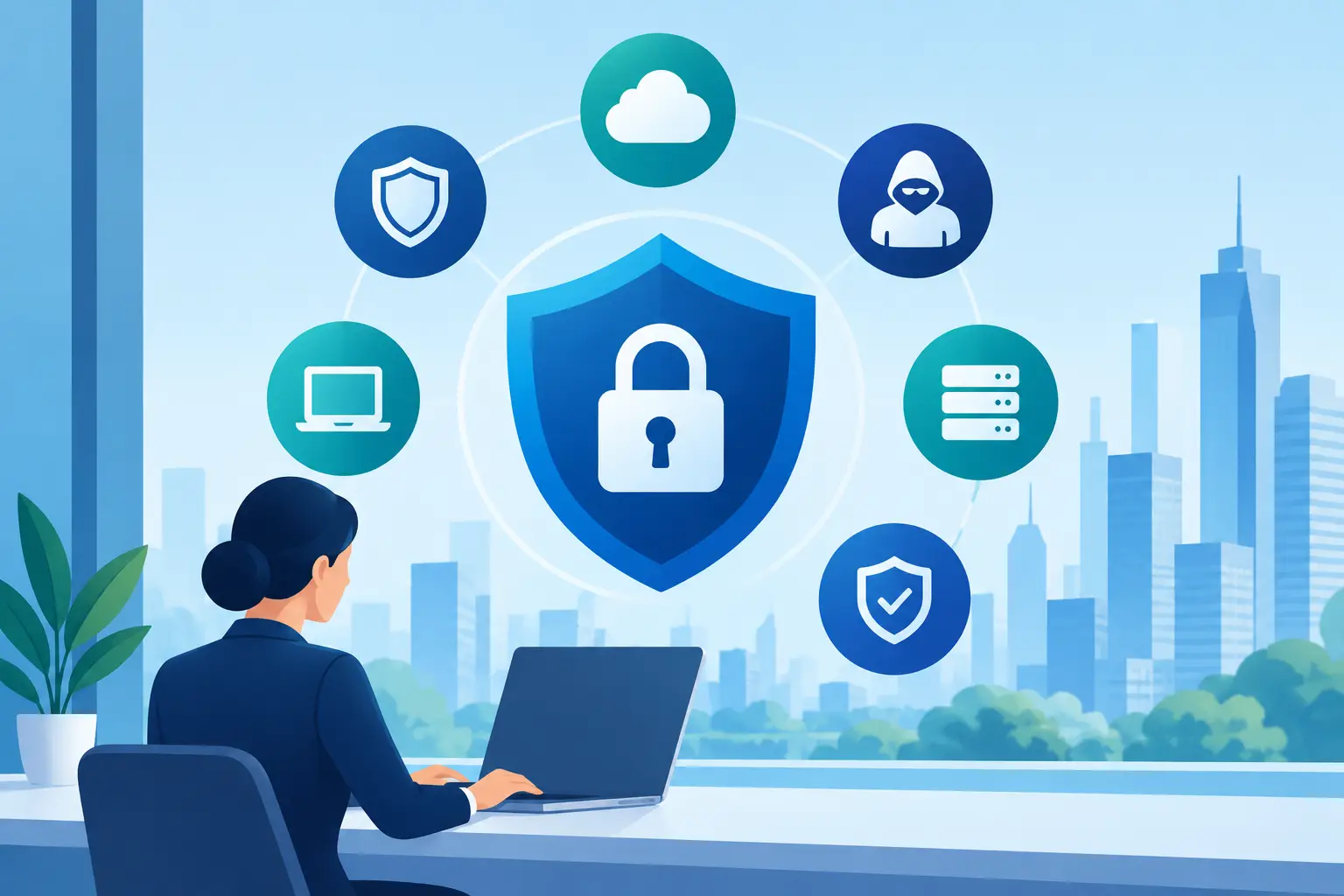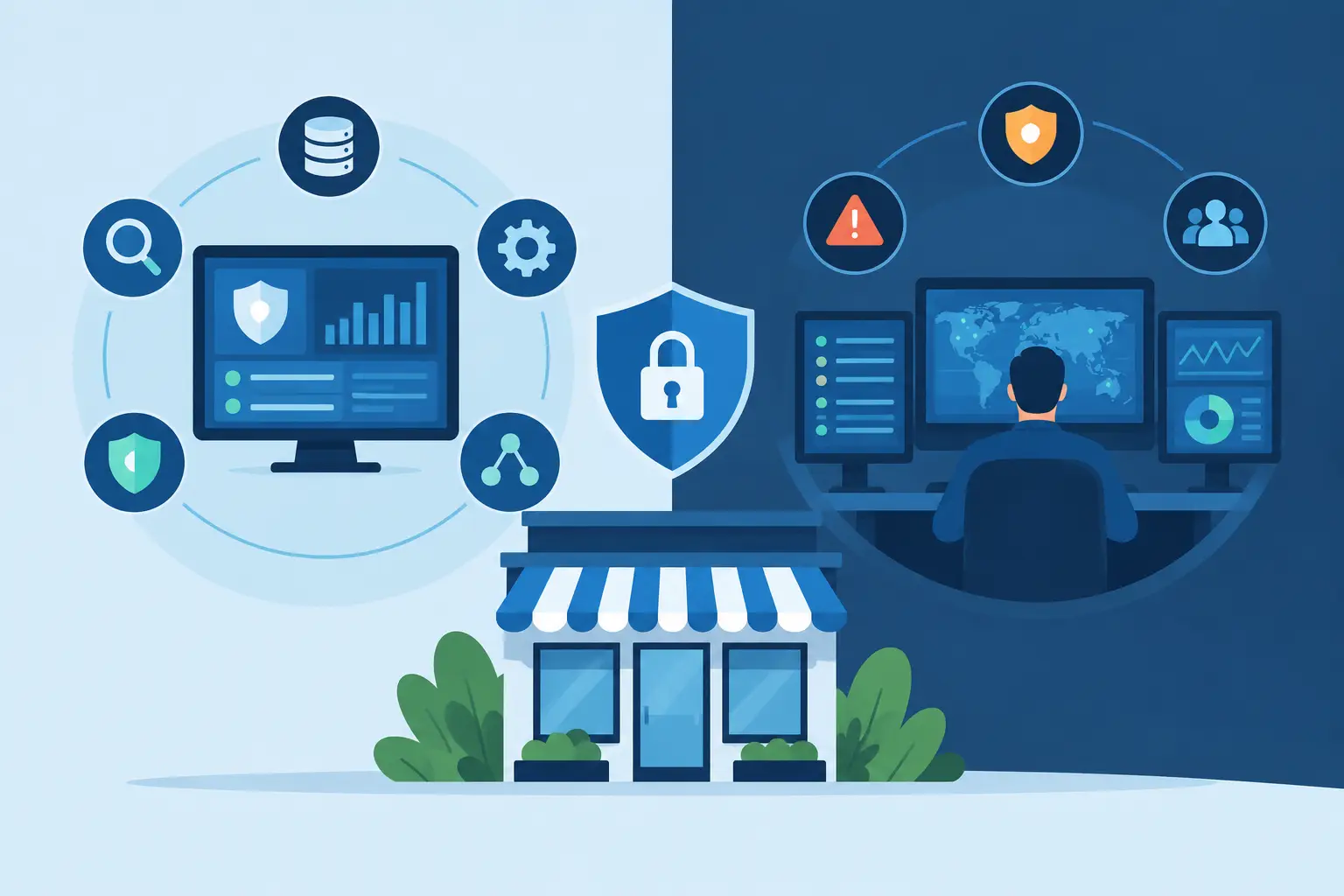
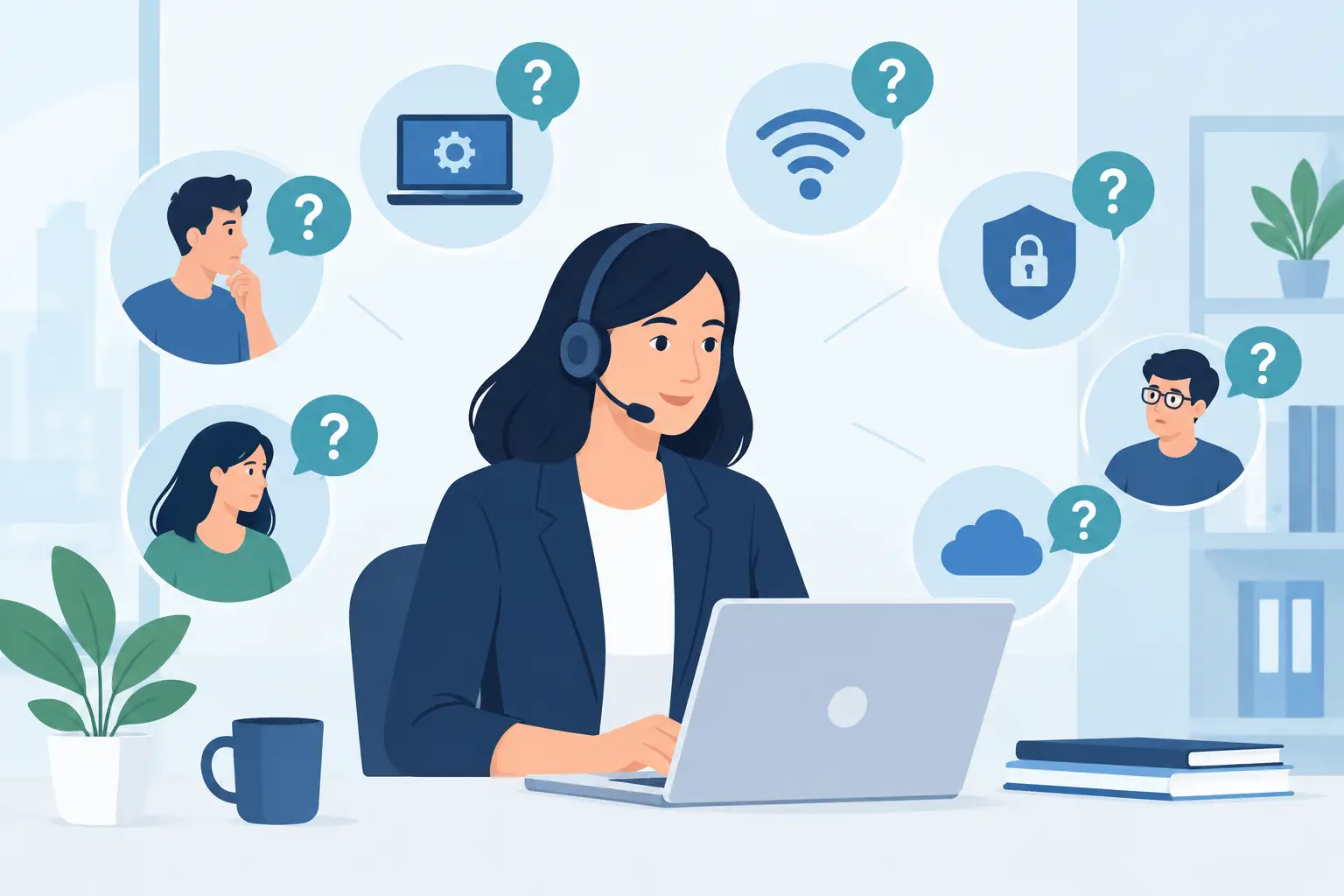
A new employee cannot access email. The office Wi-Fi drops during a client call. A suspicious invoice lands in an inbox. These are the common IT support questions that determine whether a small business keeps moving or loses valuable time troubleshooting technology.
For business leaders, the goal is rarely to understand every technical detail. It is to know what is happening, how quickly it can be resolved, and whether the same problem will return next week. Here are practical answers to the questions Florida businesses ask most often.
1. Why is our network so slow?
Slow performance can come from several places: an internet connection that no longer fits the number of users, aging network equipment, weak Wi-Fi coverage, bandwidth-heavy cloud applications, or a device issue affecting one employee. The first question is whether everyone is experiencing the problem or only certain people.
If the entire office is slow, the cause may be the internet service, firewall, switch, wireless access points, or network configuration. If only one person is affected, their laptop, docking station, browser, or local Wi-Fi signal may be responsible. A support team should test the issue before recommending a replacement, because buying faster internet will not fix poorly placed access points or an overloaded device.
2. Do we really need managed IT support?
It depends on how much downtime, security risk, and internal disruption your business can absorb. A company with a few devices and little customer data may need occasional help. Most growing businesses, however, rely on email, cloud files, payment systems, phones, and line-of-business software every day. Waiting until something fails can become expensive quickly.
Managed IT support provides an ongoing point of accountability. Instead of calling a different vendor for each issue, businesses have a team that monitors systems, responds to users, manages routine maintenance, and helps prevent recurring problems. The value is not just faster fixes. It is having someone responsible for the health of the technology your team depends on.
3. What should we do if an employee clicks a phishing email?
Act quickly, but do not panic. The employee should stop entering information, close the suspicious page, and report the message immediately. If they entered a password, that password should be changed right away, especially if it was used for other accounts.
IT support should review the account for unfamiliar sign-ins, forwarding rules, mailbox changes, and suspicious activity. The team may need to revoke active sessions, scan the device, notify other employees about the message, and determine whether company or client information was exposed.
The best response also includes prevention. Multi-factor authentication, email filtering, access controls, and practical employee training reduce the chance that one click becomes a business-wide incident.
4. How often should business data be backed up?
The right schedule depends on how much data your business can afford to lose. A company that updates customer records all day may need frequent backups. A business with mostly static files may need less frequent protection. The more useful question is: if systems failed at 3 p.m., how much work could we accept losing?
Backups should be automated, monitored, and tested. A backup that has never been restored is an assumption, not a recovery plan. Strong disaster recovery planning also considers how long your business can operate without its systems and which applications must come back first.
Cloud software can add a layer of protection, but it does not always replace backup. Deleted files, compromised accounts, retention limits, and sync errors can still create serious gaps.
5. Why can’t a new hire access the tools they need?
New employee access issues usually come down to incomplete onboarding. The user may not have the correct account, license, group membership, device setup, phone configuration, or permissions for shared files and applications. When these details are handled one at a time after the employee starts, managers and new hires lose productive hours.
A better process begins before day one. IT should receive a clear request with the employee’s role, start date, manager, hardware needs, application access, and phone requirements. That makes it possible to prepare the device, create accounts, configure security settings, and confirm access before the employee logs in.
The same level of care matters when someone leaves. Prompt offboarding protects company data by removing access, securing devices, redirecting communications when appropriate, and transferring ownership of important files.
6. Should employees use their personal phones and laptops for work?
Personal devices can be convenient, particularly for remote work or field teams, but they introduce security and support trade-offs. A personal device may lack encryption, security updates, antivirus protection, or a clear separation between business and personal information. If it is lost, stolen, or shared with family members, company data can be exposed.
Some businesses choose company-issued devices for roles that handle sensitive information. Others allow approved personal devices under a written policy with device management, multi-factor authentication, secure access rules, and the ability to remove company data if needed. The best choice depends on the role, data involved, budget, and compliance obligations.
7. How do we know whether our cybersecurity is adequate?
No business can eliminate every risk, but it can reduce the chances and impact of an incident. Adequate cybersecurity starts with knowing what systems, accounts, devices, data, and vendors you rely on. From there, protections should match the real risks to your business.
At a minimum, organizations should maintain current software updates, strong identity controls, multi-factor authentication, endpoint protection, secure backups, user awareness training, and a plan for responding to suspicious activity. Security monitoring helps identify threats that employees may not see.
Cybersecurity is not a one-time project. New employees, new applications, vendor changes, and evolving threats all create new exposure. Regular reviews are more useful than treating security as a box to check once a year.
8. Who should contact our internet, phone, or software vendor?
Your business should not have to spend hours acting as translator between vendors. When an internet provider blames the phone company or a software vendor points to the network, the issue can stall unless someone understands the environment and can press for the right evidence.
An experienced IT partner can coordinate vendors, document the symptoms, provide technical details, track the case, and verify that the repair actually resolves the issue. This is especially helpful during outages, office moves, system upgrades, and new phone deployments. Your team stays focused on customers while someone else manages the technical follow-through.
9. When should we replace computers and network equipment?
Replacement should be planned around performance, reliability, support status, and business needs, not only when hardware stops working. Older computers can slow employees down, struggle with current security requirements, and cost more in recurring repairs. Unsupported operating systems and aging firewalls can also create security concerns.
There is no single replacement date for every device. A well-maintained computer may remain useful longer than a heavily used workstation. The key is maintaining an inventory and lifecycle plan so purchases are predictable rather than emergency expenses.
10. Can cloud services replace our office server?
In many cases, yes, but not always completely. Cloud file storage, email, collaboration tools, hosted applications, and virtual servers can reduce dependence on onsite hardware and make remote access easier. They can also simplify scaling when your team grows.
However, a cloud move should be designed around your workflow, internet reliability, application compatibility, security requirements, and monthly costs. Some specialized applications perform better with local infrastructure or a hybrid approach. The right decision is based on how your employees work, not on adopting cloud services for their own sake.
11. What information should we provide when opening an IT support request?
A clear request speeds up resolution. Include the employee’s name, the device or application involved, the exact error message, when the issue started, what changed before it happened, and whether others are affected. Screenshots are often useful when they do not expose sensitive information.
Employees should also explain the business impact. “My printer is not working” and “Our shipping department cannot print labels for today’s orders” may involve the same device, but they require different urgency. Good IT support prioritizes both the technical problem and the operational consequence.
12. How can we reduce IT issues instead of constantly reacting to them?
The most effective approach is proactive management. That includes monitoring critical systems, applying updates, reviewing security alerts, testing backups, documenting devices and accounts, standardizing onboarding, and addressing recurring help desk patterns. If employees repeatedly report poor Wi-Fi in the same area or confusion around a particular application, the answer may be a configuration change or training, not another individual ticket.
For TechFusion clients, ongoing support means technology is managed after implementation, not left behind once a project is complete. That creates a clearer path from daily troubleshooting to better planning, stronger protection, and more reliable operations.
The right IT support relationship should leave your employees with fewer workarounds, your leaders with better visibility, and your business better prepared for the next unexpected issue.