A new employee is scheduled to start at 9:00 a.m., but their laptop has no business apps, their email is not active, and the manager is trying to locate a spare monitor. That is not a small first-day inconvenience. It delays training, creates security shortcuts, and tells a new hire that internal operations are less organized than they should be. A reliable employee IT onboarding checklist prevents those avoidable problems before a new person walks through the door or signs in remotely.
For small and midsize businesses, onboarding is where people, security, and daily operations meet. The goal is not simply to hand over a computer. It is to give each employee the right access, on the right device, at the right time, while keeping company systems and data protected.
Start the Process Before the Employee’s First Day
IT should receive notice as soon as a hiring decision is confirmed. Waiting until the day before a start date leaves little room to order equipment, configure applications, resolve licensing issues, or clarify what the employee actually needs to do their job.
A manager or HR contact should provide the employee’s name, role, department, manager, start date, work location, employment type, and expected hardware needs. This information gives IT the context to build an appropriate setup. A field technician, for example, may need a durable laptop, mobile device access, and a secure way to reach work files from customer locations. An accounting employee may need dual monitors and access to financial software but should not receive broad administrative rights.
Role-based planning is more secure and more efficient than treating every new hire the same. It also reduces cleanup later, when unnecessary accounts and permissions have to be removed.
Confirm the Work Arrangement and Equipment Plan
The hardware decision should reflect how the employee will work. A fully remote employee may need a laptop, docking station, webcam, headset, and guidance for a dependable home network. An office-based employee may need a desktop or laptop, monitors, keyboard, mouse, phone setup, and access to shared printers.
Standardized equipment makes support easier and helps control costs. That does not mean every employee needs identical technology. It means the business should have approved options that are tested, supported, and appropriate for different job functions.
Before deployment, record the device make, model, serial number, assigned user, accessories, and replacement value. An accurate asset record matters during troubleshooting, warranty claims, refresh planning, and offboarding.
Employee IT Onboarding Checklist: Prepare and Secure the Device
A laptop that turns on is not ready for business use. Before it reaches the new employee, IT should apply the company’s standard configuration and verify that the device can be supported from day one.
The device preparation process should include these core items:
- Install current operating system updates, approved business software, and required device drivers.
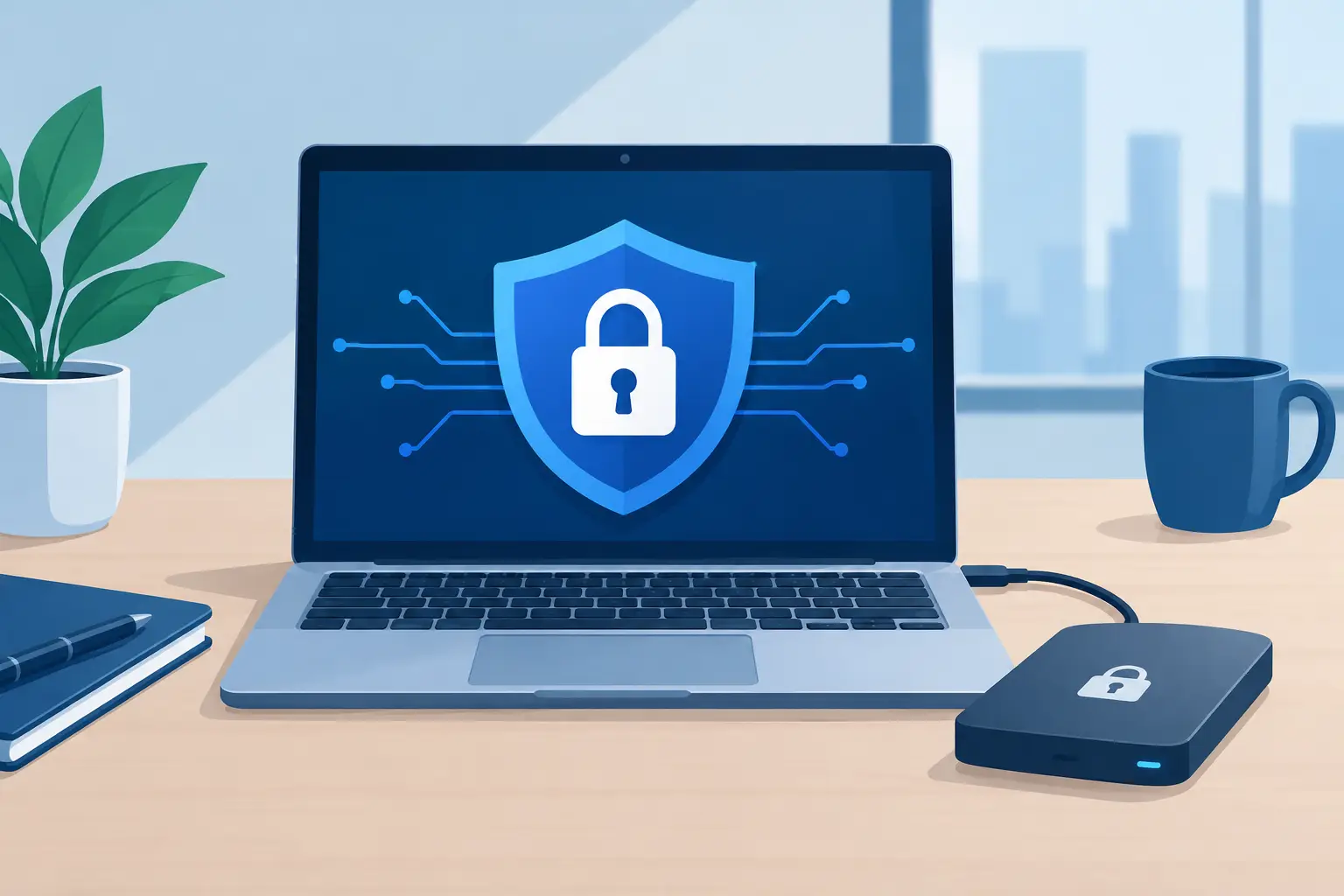
- Enable endpoint security tools, firewall settings, disk encryption, and centralized monitoring.
- Create a standard user profile without local administrator privileges unless there is a documented business reason.
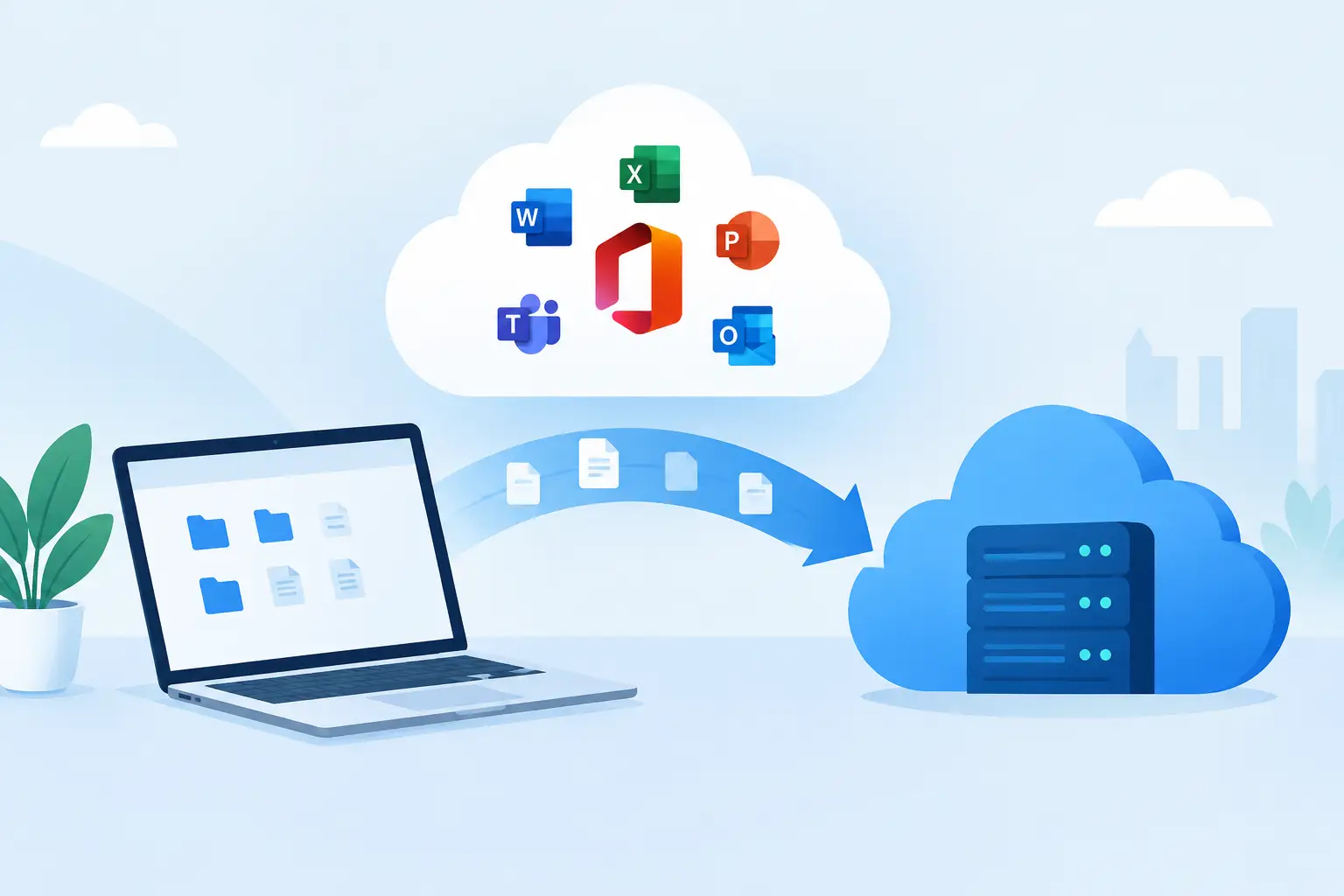
- Configure automated backups or confirm that business files will be stored in approved cloud locations.
- Test Wi-Fi, VPN or remote access, video conferencing, printing, and any role-specific applications.
Security controls can feel invisible when they work well, but they are essential. Disk encryption helps protect business data if a laptop is lost. Endpoint monitoring can identify suspicious activity early. Automatic updates close known security gaps without relying on employees to remember every prompt.
There are trade-offs. Highly restricted devices may limit flexibility for specialized roles, while broad administrative access increases the chance of accidental changes, malware installation, or unmanaged software. When an exception is necessary, document who approved it, why it is needed, and when it should be reviewed.
Set Up Accounts With Least-Privilege Access
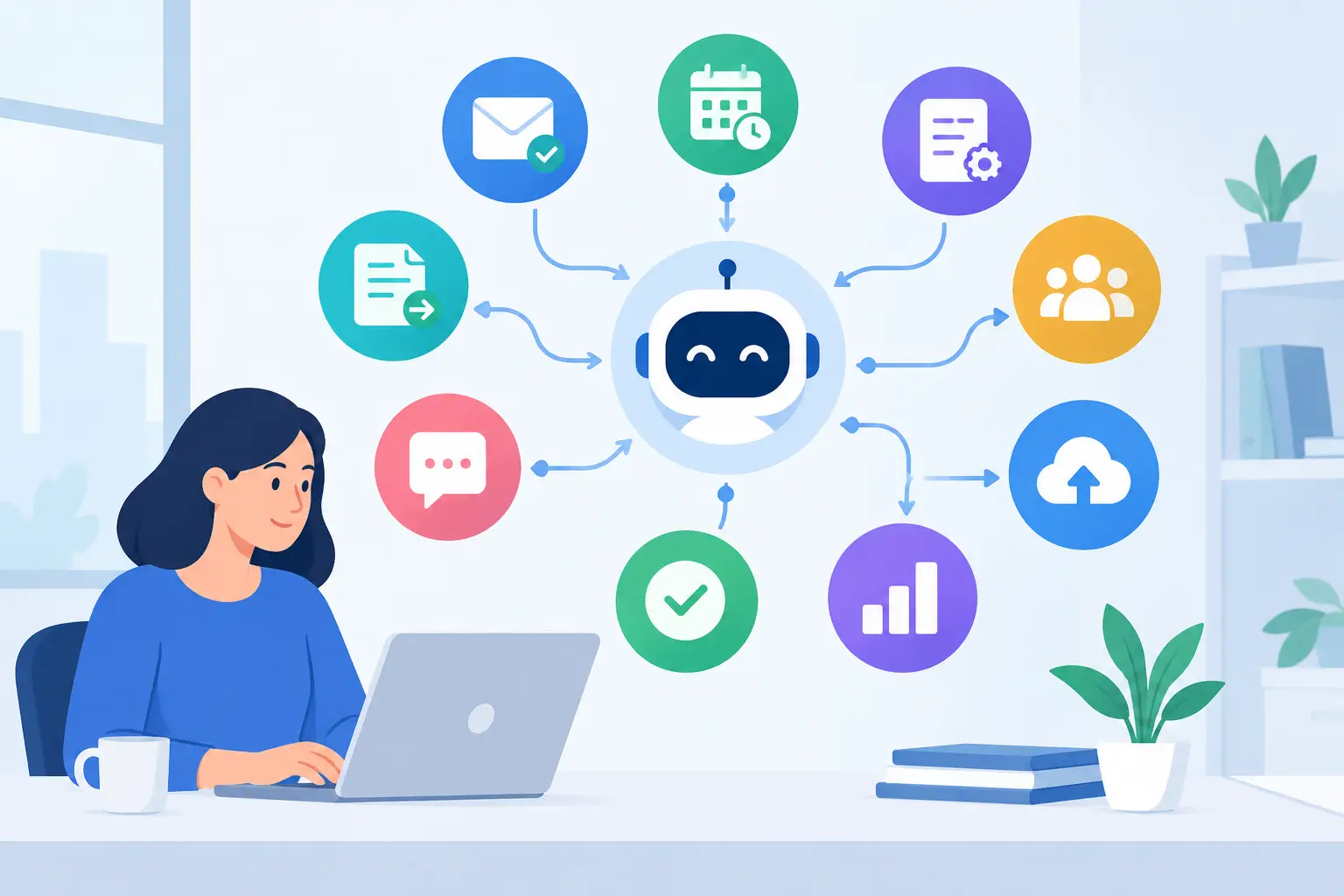
Account provisioning is often the most sensitive part of onboarding. New employees need email, collaboration tools, cloud storage, line-of-business systems, and sometimes customer or financial platforms. Each account creates another potential entry point into the organization.
Begin with a unique company identity for the employee. Never reuse credentials from a prior employee or issue shared logins for systems that can support individual accounts. Shared access makes it difficult to determine who made a change, accessed a file, or approved a transaction.
Use the principle of least privilege: provide only the access required for the person’s current responsibilities. A new sales coordinator may need the CRM, shared sales resources, email, and phone system access. They likely do not need access to payroll, network administration tools, or confidential executive folders.
Multi-factor authentication should be enabled before access is granted for email, cloud platforms, remote access, financial applications, and other critical systems. It adds a small step to sign-in, but it substantially reduces the risk that a stolen password becomes a business-wide incident.
Include Communication and Vendor Systems
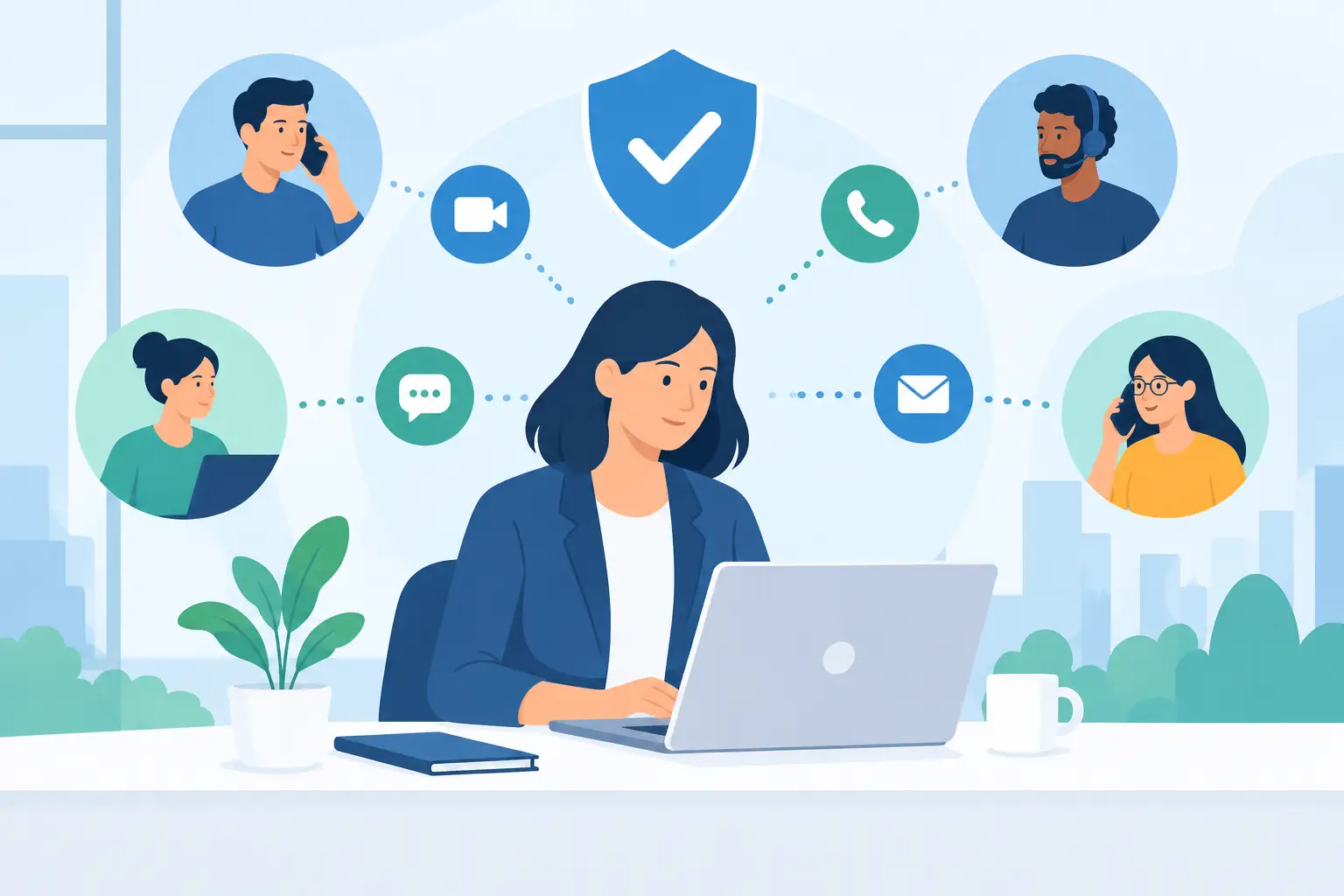
Employees cannot be productive if they cannot communicate with customers, coworkers, or vendors. Configure the business phone extension or softphone application, voicemail, call routing groups, email signature, and approved messaging tools. Confirm whether the role needs access to a shared inbox, scheduling calendar, customer portal, or vendor account.
Vendor-managed systems deserve special attention. Businesses often lose time when no one knows who owns a software subscription, a website platform, an internet account, or a phone service portal. Maintain a clear list of the system owner, billing contact, administrator, and support process. This reduces delays when a new employee needs access or an issue requires escalation.
Make the First-Day Handoff Clear and Useful
A well-configured device can still create frustration if the employee does not know how to use it safely. The first-day handoff should be brief, practical, and tailored to the employee’s technical comfort level.
Show the employee how to sign in, reset a password through the approved process, connect to the office network or remote access tools, store files in the correct location, and request support. Explain which tools are approved for business communication and file sharing. If the company has policies for personal devices, removable drives, or public Wi-Fi, address those in plain language.
This is also the right time to set expectations around security. Employees should know how to recognize a suspicious email, report a possible phishing attempt, verify an unexpected payment or password request, and report a lost device immediately. Security awareness is more effective when it is tied to realistic decisions employees will face, not a long policy document that is forgotten after orientation.
Ask the employee to sign in to the key systems while support is available. A five-minute test can reveal a missing license, an incorrect permission, or an authentication problem before it interrupts a meeting or customer call later that day.
Verify, Document, and Follow Up
Onboarding should not end when the laptop is issued. Within the first week, confirm that the employee can access the tools needed for their role and that there are no unnecessary accounts or permissions. Managers are valuable partners in this review because they can identify missing access that IT may not know is required.
Document completed tasks, assigned equipment, active accounts, security acknowledgments, and approved exceptions. Keep the record in a location available to authorized HR, operations, and IT personnel. Good documentation speeds up support and gives the business a dependable starting point when the employee changes roles or leaves.
A 30-day check-in is useful for roles with complex software or customer-facing responsibilities. It can uncover training needs, inefficient workflows, or applications that were granted but never used. Removing unused access is just as important as adding needed access.
Treat Onboarding as Part of Business Continuity
The best onboarding process is repeatable, but it is not rigid. A five-person office may need a lighter workflow than a company with several departments, remote staff, regulated data, and multiple locations. The common requirement is accountability: someone must own each step, confirm completion, and address exceptions before they become downtime or security exposure.
For businesses without internal IT staff, a managed technology partner can coordinate device setup, account access, cybersecurity controls, phone systems, and vendor support under one accountable process. TechFusion helps Central Florida organizations build onboarding procedures that keep new employees productive without leaving security and support details to chance.
Every new hire is a chance to reinforce how your business works. When technology is ready, access is appropriate, and help is easy to reach, employees can focus on learning their role and serving customers from their first day.