A visitor asking for WiFi should not create a path to your accounting system, employee devices, security cameras, or shared files. Yet many businesses still hand out the same wireless password used by staff because it is convenient in the moment. That convenience can create a preventable security and operations problem. When you set up secure guest wifi correctly, visitors get the access they need while your business network remains separate and protected.
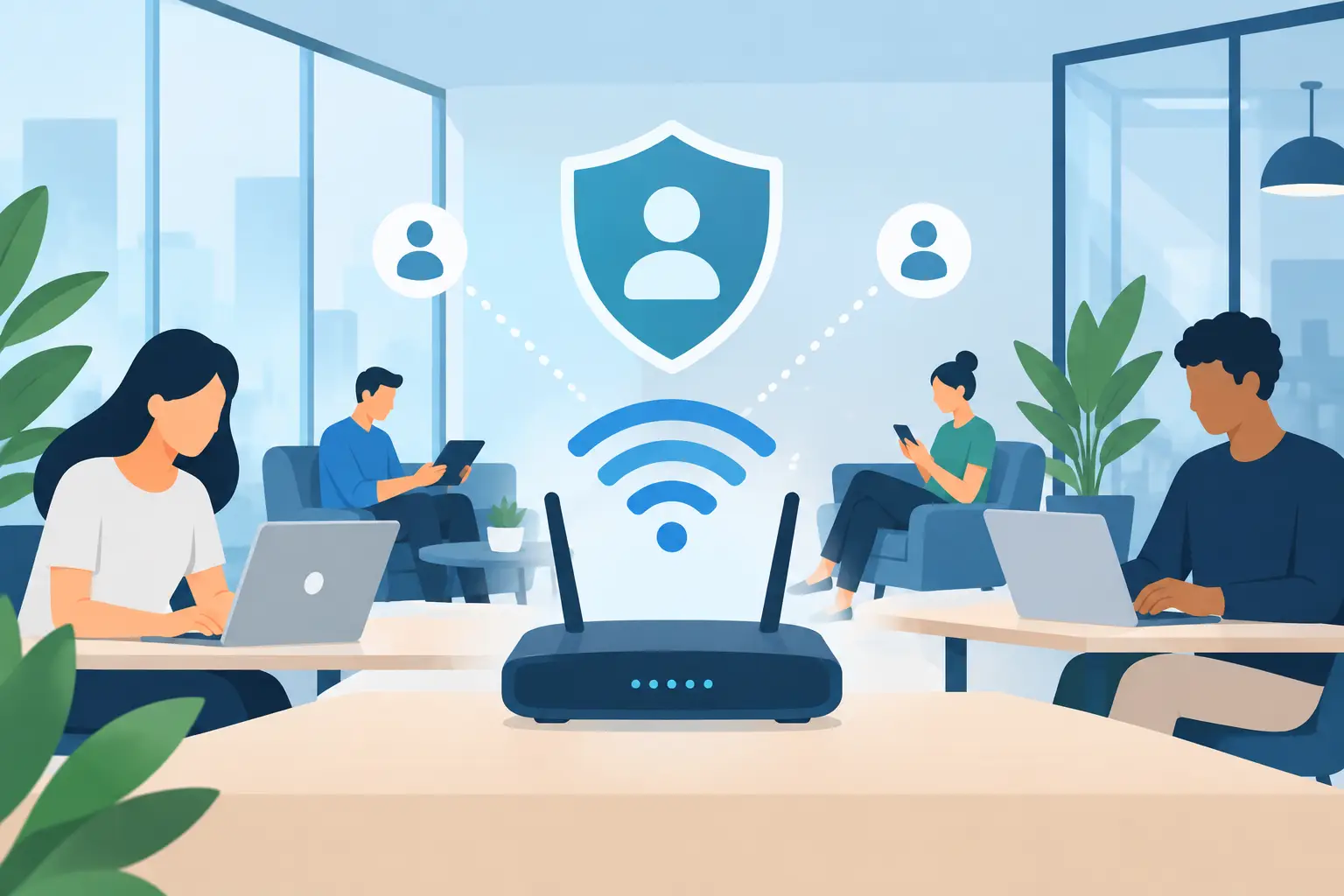
For offices in Tampa Bay and Central Florida, guest WiFi is often necessary. Clients wait in reception areas, vendors visit the office, contractors need temporary connectivity, and candidates may complete applications on-site. The objective is not to eliminate guest access. It is to provide it with clear boundaries, appropriate controls, and reliable performance.
Why Guest WiFi Needs Its Own Network
A guest network is more than a second name on the list of available WiFi connections. It should be a separate network segment, usually built on its own virtual LAN, or VLAN. This separation prevents a guest-connected phone, laptop, or tablet from directly reaching the devices and services your employees use every day.
Without segmentation, a visitor’s infected device could scan for shared folders, printers, cameras, or other systems on the same network. Even an honest guest can cause issues accidentally, such as connecting a personal device that consumes excessive bandwidth or conflicts with network resources.
A properly configured guest network limits that exposure. Guests can reach the internet, but they cannot browse internal systems, communicate with employee devices, or access management interfaces for routers, firewalls, and printers. This also makes troubleshooting easier. If the guest network has a problem, your core business operations do not have to be affected.
How to Set Up Secure Guest WiFi Step by Step
The right configuration depends on the size of your office, the age of your network equipment, and how frequently visitors require access. A small professional office may need a straightforward guest VLAN and rotating password. A medical practice, law firm, financial office, or multi-location business may need tighter controls, activity logging, and centrally managed wireless access points.
Start with business-grade equipment
Consumer-grade routers can be adequate for a home, but they often lack the management, visibility, and network segmentation features a business needs. Use a business-class firewall and managed wireless access points that support multiple SSIDs, VLANs, client isolation, security updates, and centralized administration.
Before creating a guest network, update the firmware on the firewall, router, switches, and access points. Old firmware can leave known vulnerabilities open, even if the wireless password is strong. Disable remote administration from the internet unless there is a specific business need and it is protected with multi-factor authentication and restricted access.
Create a separate guest SSID and VLAN
Configure a distinct wireless network name, or SSID, such as “Company Guest.” Avoid including details in the name that reveal your location, business type, or internal network naming convention.
Then place that SSID on a dedicated guest VLAN. The VLAN is the critical control: it separates guest traffic from employee traffic at the network level. Configure firewall rules that allow the guest VLAN to access the internet while blocking access to internal networks, servers, network printers, phone systems, cameras, and administrative interfaces.
Do not rely only on an option labeled “guest mode.” Some equipment enables basic guest access, but the actual isolation can vary by vendor and configuration. Verify that the firewall and switching rules enforce separation, not just the access point settings.
Turn on client isolation
Client isolation prevents one guest device from communicating with another device on the same guest WiFi network. This reduces the risk of a visitor attempting to scan, attack, or share files with another guest’s laptop or phone.
It can also reduce accidental exposure in public-facing environments. For example, two people sitting in a waiting room should not be able to discover each other’s devices simply because they joined the same wireless network.
There are exceptions. If guests need to cast to a conference-room display, print to a designated guest printer, or use a shared event device, client isolation may need carefully planned exceptions. Those exceptions should be limited to the exact device and service required, rather than opening access across the network.
Use modern wireless encryption and a controlled sign-in process
Use WPA3-Personal when your hardware supports it. WPA2-AES remains acceptable for compatibility with older devices, but avoid outdated options such as WEP, WPA, or WPA2 with TKIP. These older protocols do not provide appropriate protection for a business environment.
For many offices, a strong guest password that changes on a regular schedule is sufficient. Keep the password different from the employee WiFi password and do not post it permanently on public signage. Staff can provide it to approved visitors, or your front desk can use a controlled process.
A captive portal can provide more control for businesses with frequent visitors. This is the page guests see before internet access is granted. It can require acceptance of acceptable-use terms, issue time-limited access, or use a unique code. Captive portals are useful, but they are not a substitute for network segmentation and firewall rules.
Limit bandwidth without making the network unusable
Guest WiFi should not interfere with video calls, cloud applications, VoIP phones, or other business-critical services. Set reasonable bandwidth limits for the guest network and prioritize business traffic through quality-of-service settings where appropriate.
The exact limit depends on your internet connection and visitor volume. A small office with occasional guests may allow more bandwidth per device. A busy reception area, training site, or event space may need stricter per-device limits to prevent one download or streaming session from slowing everyone else down.
Block peer-to-peer traffic when practical, and consider web filtering to reduce access to known malicious sites. These controls protect the network and help preserve available bandwidth, but they should be reviewed carefully if guests have legitimate business reasons to access specialized services.
Secure Guest WiFi Is Also an Operating Policy
Technology controls work best when employees know how to use them. Establish a simple guest WiFi policy that explains who can provide access, how temporary credentials are issued, how long access lasts, and when the password should be changed.
Your policy should also clarify that employees must not share the internal WiFi password with visitors. This is especially relevant for contractors and long-term vendors who may be in the office often. If someone needs recurring access, create a managed guest-access method rather than making an exception to the employee network.
For regulated organizations, review whether your guest WiFi setup supports your compliance responsibilities. A guest network cannot by itself make an organization compliant with HIPAA, PCI DSS, or other requirements. It does, however, support a stronger security posture by reducing unnecessary access to systems that process sensitive information.
Test the Separation Before You Rely on It
After configuration, connect a test device to the guest WiFi and try to reach internal resources. The test device should have internet access but should not be able to see shared drives, access printers, reach internal IP addresses, or open the management page for your network equipment.
Test from more than one device type if possible. Phones, Windows laptops, Macs, tablets, and older devices can behave differently with captive portals and modern encryption settings. Also confirm that employee devices remain on the intended internal network and that business applications continue to perform normally.
Monitoring matters after launch. Review connected devices, bandwidth usage, failed authentication attempts, firmware status, and unusual traffic patterns. A managed IT partner can help maintain these controls, coordinate internet and equipment vendors, and respond when a network issue threatens productivity.
Guest WiFi should feel simple to visitors, but it should never be an unmanaged doorway into your business. A brief review of your wireless setup each quarter can catch outdated passwords, unsupported equipment, and configuration drift before they become a disruption. TechFusion helps businesses build and manage networks that support everyday access without compromising the systems employees depend on.