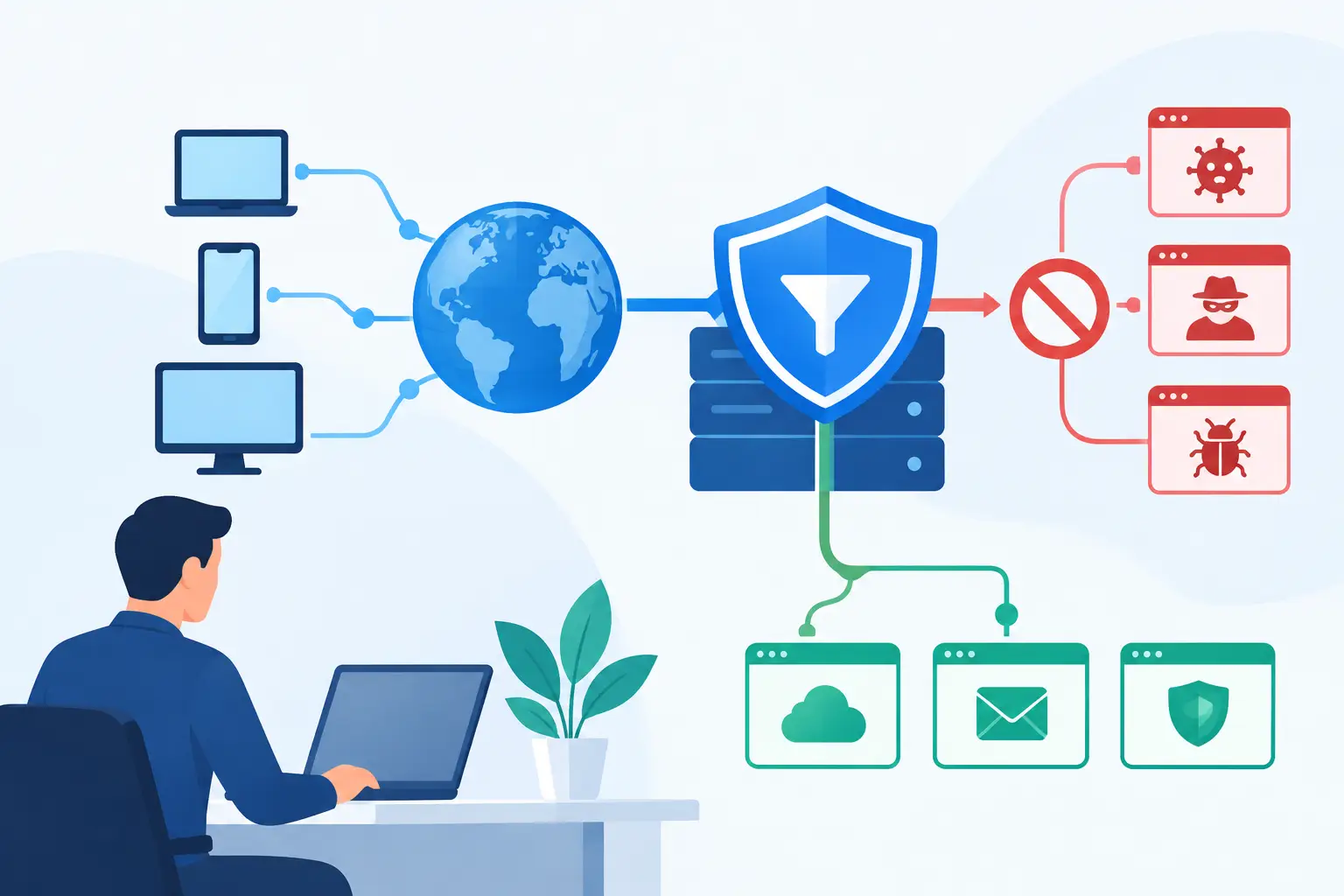

When a customer reaches a dead line, a receptionist cannot transfer a call, or every employee suddenly hears choppy audio, the problem is more than technical. It can interrupt sales, delay service, and make your business appear unavailable. Knowing how to troubleshoot office phone problems helps your team respond calmly, protect productivity, and give your IT provider the details needed to resolve the issue faster.
Most business phone issues fall into one of three areas: the phone or headset itself, the local network and internet connection, or the phone provider’s service. The goal is not to make every employee a phone technician. It is to quickly identify the likely source, avoid changes that create a larger outage, and restore communication with minimal disruption.
Start by Defining the Scope of the Problem
Before rebooting equipment or calling your phone provider, find out who is affected. A single desk phone that will not power on requires a different response than an entire office that cannot make outbound calls.
Ask a few practical questions: Is the issue affecting one person, one department, or every phone? Can employees receive calls, place calls, or neither? Are calls failing completely, or is the problem poor audio, delays, dropped calls, or voicemail? Did the issue begin after a power outage, internet interruption, office move, equipment change, or system update?
This information narrows the investigation quickly. If only one extension is affected, focus on the device, cable, headset, user settings, or assigned extension. If multiple phones fail at the same time, look first at the network, power equipment, internet service, or phone platform.
Keep a brief record of the time the problem began, the affected extensions, and one or two examples of failed calls. Those details are especially useful when an IT team needs to coordinate with an internet or voice vendor.
Troubleshoot Office Phone Problems at the Desk
When the problem appears limited to one phone, start with the simplest physical checks. Confirm that the phone is powered on and that its screen is active. For many Voice over IP, or VoIP, phones, power may come through the network cable rather than a wall adapter. A loose Ethernet connection or a failed Power over Ethernet port can leave the phone offline even when the rest of the office has internet access.
Check the network cable at both ends. If the phone has a power adapter, verify that it is firmly connected and the outlet is working. Look for messages on the display such as Network Unavailable, Registration Failed, or No Service. Write down the exact message rather than relying on memory.
If a headset is involved, disconnect it and test the handset or speakerphone. A damaged headset cable, depleted wireless headset battery, or incorrect audio setting can make it seem as though the entire phone is failing. Likewise, confirm the phone is not muted, the ringer volume has not been turned down, and Do Not Disturb is not enabled.
A restart can resolve a temporary registration issue, but it should be deliberate. Restart the individual phone only after noting its error message and checking its cables. Avoid factory resets unless instructed by the phone provider or IT support team. A factory reset can erase provisioning details and turn a minor problem into a longer service interruption.
Check Whether the Network Is Affecting Calls
Cloud-based phone systems rely on the same underlying network that supports your computers, printers, and other connected devices. That does not mean every internet slowdown will stop calls, but voice traffic is sensitive to delay, packet loss, and inconsistent bandwidth. A connection that feels acceptable for email may still produce robotic audio or dropped calls.
If several users report poor call quality, see whether other network services are also affected. Are websites slow? Are video meetings freezing? Did large uploads, cloud backups, security camera traffic, or guest Wi-Fi activity increase around the same time? These clues can point to congestion rather than a failed phone system.
Restarting a modem, firewall, or network switch without a plan can temporarily disconnect every employee and may complicate diagnosis. If the issue is widespread, a managed IT provider should review the network status, firewall events, switch power, and voice traffic settings. Business phone systems often need quality-of-service rules that prioritize voice packets over less time-sensitive traffic. The right setup depends on your internet connection, phone platform, office size, and the applications your team uses throughout the day.
Power also deserves attention. A brief outage can affect network switches, wireless access points, cable modems, and phones differently. If your phones are down after a power event, verify that network equipment has fully restarted and that battery backup units are operational. For businesses that depend heavily on incoming calls, battery backup and a documented call-forwarding plan are practical continuity measures.
Identify Common Calling Symptoms
Different symptoms often indicate different causes. Match what employees are experiencing to the most likely starting point:
- No dial tone or an offline display may indicate a power, cable, switch-port, registration, or internet issue.
- One-way audio, where only one caller can hear the other, can point to a firewall configuration, network address translation issue, or provider-side routing problem.
- Choppy, delayed, or robotic audio often results from packet loss, congestion, weak Wi-Fi, or insufficient voice prioritization.
- Calls going directly to voicemail may be caused by Do Not Disturb, call forwarding, an incorrect schedule, a user setting, or a routing rule in the phone system.
- Failed outbound calls may involve dial permissions, account configuration, a service outage, or a problem with the phone provider’s call routing.
These are starting points, not final diagnoses. For example, choppy audio on a single wireless phone may be a local coverage issue, while the same complaint across the office is more likely related to the network or internet connection.
Review Call Routing and User Settings
Not every phone problem is caused by hardware. Auto attendants, hunt groups, ring groups, business hours rules, voicemail settings, and call forwarding settings can all change how calls reach employees.
If callers say they cannot reach the right department, test the call path from an outside number. Listen to the auto attendant options, confirm the correct extension is assigned, and see whether the intended user can answer from their desk and mobile app. If a recently hired employee cannot receive calls, verify that their extension, voicemail, permissions, and device assignment were completed during onboarding.
For employees who work remotely, confirm they are using an approved connection and the correct phone application or device. Home Wi-Fi, consumer-grade routers, and personal VPN settings can affect call quality. The fix may be as simple as moving closer to the access point or using a wired connection, but recurring problems may require a closer review of the remote setup.
Know When to Contact Your IT or Phone Provider
Your team should escalate promptly when multiple phones are offline, call quality is affecting several users, the internet connection is unstable, or the phone system reports a registration or service error. Escalation is also appropriate when call routing appears incorrect, voicemail is unavailable, or a potential security concern is involved.
Provide the person handling the issue with the office address, affected phone numbers or extensions, the approximate start time, the exact error message, and whether internet access is working. If possible, include a recent failed call example with the number called and time of day. This prevents repeated troubleshooting steps and makes vendor coordination more efficient.
A dependable technology partner can handle the handoff between your business, internet provider, and phone vendor, rather than leaving your staff to explain the same issue to multiple support desks. TechFusion helps businesses investigate the full environment, from desk phones and network switches to internet connectivity and voice settings, so the response addresses the real cause.
Reduce Future Phone Disruptions
The best phone support plan is proactive. Keep an up-to-date list of phone numbers, extensions, provider contacts, network equipment, and call-forwarding instructions. Review these details when employees join or leave, when departments move, and before seasonal busy periods.
Your business should also test how incoming calls will be handled during an internet outage. Many phone platforms can forward calls to mobile numbers or an alternate location, but those rules must be configured and tested before an emergency. Verify that emergency calling information is accurate as well, particularly after an office move or phone system change.
Reliable office communications come from more than replacing a handset when something goes wrong. With clear documentation, healthy network equipment, monitored internet service, and responsive support, your team can keep answering the calls that matter most.