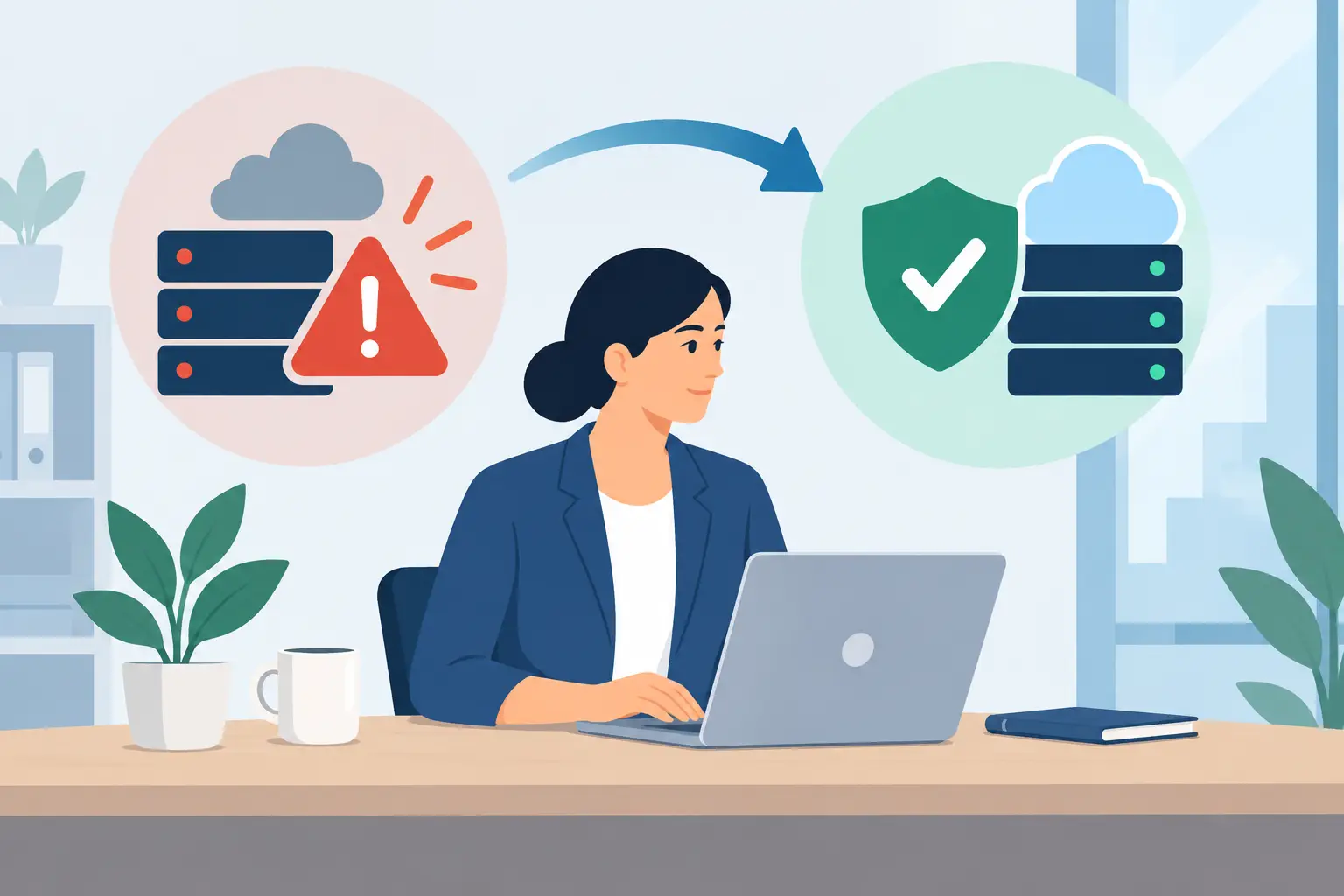
Email migrations tend to become urgent at the worst possible time: a provider is retiring a platform, a security concern has surfaced, or a growing team has outgrown its current setup. The goal is to migrate email without downtime so employees can keep communicating, customers receive replies, and important records stay available throughout the change.
That outcome is achievable, but it does not come from moving mailboxes in a single overnight event and hoping for the best. A reliable migration is a controlled business-continuity project. It accounts for mail flow, user access, mobile devices, security settings, shared inboxes, vendor dependencies, and the people who need to keep working while the technical work happens.
What “No Downtime” Really Means for Email Migration
No downtime does not necessarily mean every historical email appears in the new mailbox at the exact second the switch occurs. Large mailboxes can take days or weeks to synchronize fully. It means users can continue sending and receiving email without a material interruption, and they can access the messages and calendars required to do their jobs.
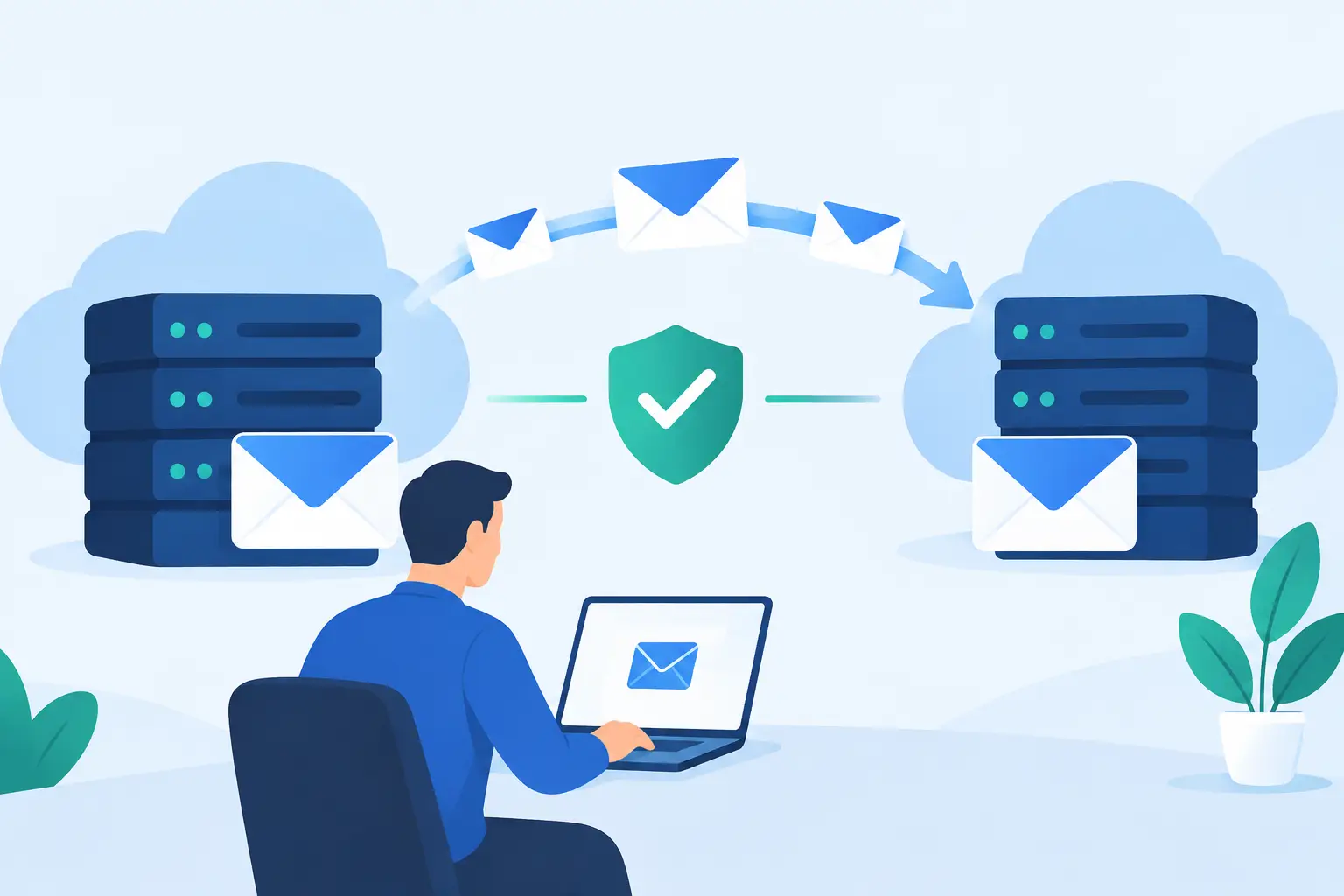
A well-managed project typically uses coexistence or staged synchronization. Existing mail is copied to the new platform before the final cutover. Then, during the planned transition window, the migration team runs a final synchronization to capture messages that arrived during the initial transfer. Mail routing changes only after the new environment has been validated.
This approach reduces risk, but it still requires planning. DNS propagation, third-party email security tools, outdated Outlook versions, and unmanaged personal devices can all affect the experience if they are not identified early.
Start With a Complete Email Environment Assessment
The most common migration problems begin before any mailbox moves. A business may know it has 40 employees, for example, but not realize that it also relies on shared sales inboxes, former employee archives, conference-room calendars, scanner notifications, website forms, and software that sends invoices through an SMTP relay.
Before selecting a migration method, document the full environment. Confirm the number of active and inactive mailboxes, mailbox sizes, aliases, distribution lists, shared mailboxes, and public or shared calendars. Identify every application and device that sends email under the company domain.
This assessment should also review licensing and identity management. If the new platform will use Microsoft 365 or Google Workspace, determine how users will sign in, whether multifactor authentication is required, and which license level supports each employee’s needs. An executive who relies on desktop applications, delegated calendars, and advanced compliance features may need a different setup than a part-time field user.
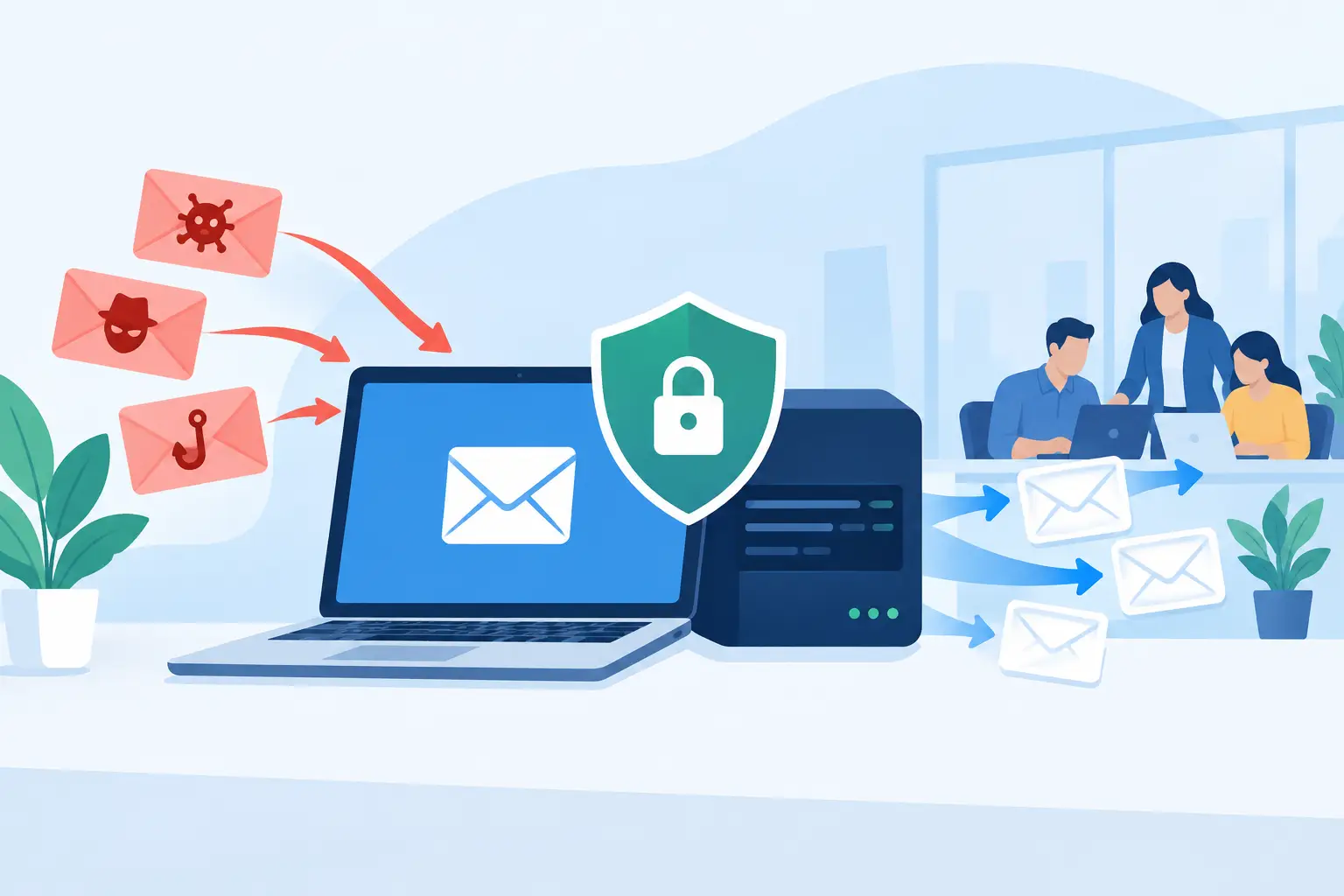
Security deserves equal attention. Record existing SPF, DKIM, and DMARC settings, along with email filtering, encryption, archiving, and retention policies. Rebuilding these settings after the cutover can create a window where legitimate messages are rejected, spoofed mail is more likely to arrive, or regulated records are not retained correctly.
Build the Migration Plan Around Business Operations
The right approach depends on the source system, destination platform, mailbox count, amount of data, and how much change the organization can absorb. A small office moving from a basic hosted email service may use a straightforward staged cutover. A larger company with multiple domains, an on-premises Exchange server, or strict retention requirements may need a hybrid or phased migration.
The technical plan should include more than a date. It should identify who approves decisions, who communicates with employees, who has administrator access, and who will respond if a user cannot sign in or a critical mailbox does not receive mail. It should also establish a rollback threshold. While a properly prepared migration rarely needs to be reversed, the team should know exactly what conditions would trigger that decision.
Schedule the final routing change during a lower-volume period when possible, but do not assume after-hours work eliminates the need for support. Employees may check email from home, customers may submit website forms overnight, and automated systems may send alerts at any time. Monitoring must continue through the transition and into the next business day.
Prepare the New Environment Before Moving Users
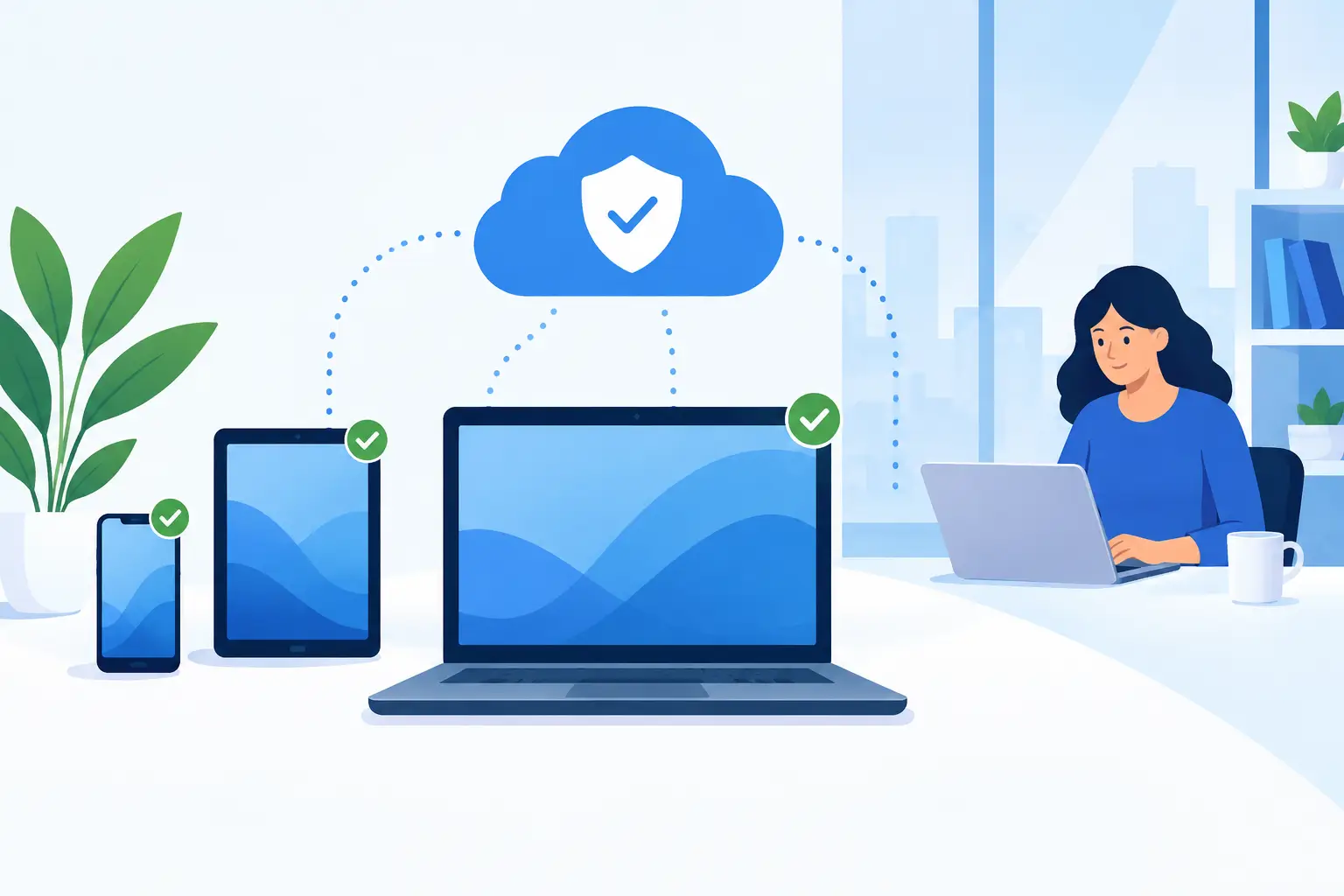
The destination platform should be fully configured before mailboxes are cut over. Create user accounts, assign licenses, configure security policies, and establish shared mailbox permissions in advance. If employees use mobile device management, endpoint protection, or conditional access rules, test those controls with pilot accounts before deploying them broadly.
Set up the new domain and reduce DNS time-to-live values ahead of the planned change. A lower TTL helps internet providers refresh mail-routing records more quickly when the final update is made. It does not guarantee instant propagation everywhere, which is why temporary coexistence and careful monitoring matter.
Authentication records should be ready before the cutover. SPF tells receiving systems which servers may send mail for your domain. DKIM adds a cryptographic signature that supports message authenticity. DMARC applies your policy when authentication checks fail. These records protect deliverability and help prevent impersonation, but they must match the actual sending services in use.
Do not overlook user-facing configuration. Prepare instructions for Outlook, mobile mail apps, shared calendars, and password setup. If a business uses a line-of-business application that sends email, test it against the new SMTP or approved sending method before the old service is retired.
Use a Pilot Group to Find Problems Early
A pilot migration is one of the strongest safeguards against disruption. Select a small group representing different working styles: an executive, a power user, a remote employee, someone who relies on shared mailboxes, and a user who works primarily from a mobile device. Include an internal IT contact or business liaison who can report issues clearly.
Move the pilot group first, then test normal work rather than relying only on technical status screens. Can they send and receive messages internally and externally? Do meeting invitations reach the right calendars? Can they access delegated inboxes? Does email work from Outlook, a web browser, and a phone? Are messages from the website, copier, accounting platform, and security systems arriving as expected?
Pilot feedback may reveal configuration gaps that would have affected every employee. It can also show where communication needs improvement. For example, users may not need a detailed explanation of DNS, but they do need to know when to restart Outlook, where to sign in, and who to contact if their phone stops syncing.
Run the Final Sync and Change Mail Flow Carefully
After the initial mailbox copy and successful pilot, the final migration window can begin. New mail may continue arriving at the old platform while historical data is being transferred, so perform an incremental sync immediately before the mail-routing change. This captures recent messages, calendar updates, and contacts that changed after the first pass.
Next, update the MX records and any related routing or security settings according to the planned design. Monitor both the old and new environments during DNS propagation. In some cases, temporary forwarding or connector rules can protect mail flow while different providers update their cached records.
A migration team should actively test inbound and outbound messages from outside email services, not just between internal users. Test attachments, replies, forwarding, shared mailboxes, and messages sent to aliases. Review message tracking and security logs if mail appears delayed or rejected.
Do not decommission the old service immediately. Keep it available long enough to verify that all required data has been transferred and that no unexpected application, device, or vendor still depends on it. This overlap costs something, but it is usually far less expensive than losing mail or discovering a missed dependency after the account has been closed.
Support Employees Through the First Week
The migration is not finished when the MX record changes. The first week is when adoption and support determine whether the business experiences the project as organized or disruptive.
Provide employees with a clear point of contact and short, practical instructions. Prioritize fast help for login trouble, mobile configuration, Outlook profile issues, missing shared mailbox access, and calendar permissions. Keep leaders informed about the transition status so they can reassure their teams and escalate business-critical concerns quickly.
Continue monitoring for delivery failures, suspicious login attempts, and authentication errors. Review whether every user has multifactor authentication enabled and whether departed employees or unused accounts still have access. A new email platform is an opportunity to improve security, not simply recreate old habits.
For businesses without internal IT staff, a managed technology partner can coordinate the email provider, internet vendor, security platform, and employees in one accountable process. TechFusion approaches migrations as ongoing operational support, helping ensure that the environment remains secure and manageable after the project is complete.
A successful email migration should be almost unremarkable to customers and employees: messages continue moving, calendars remain useful, and the business stays responsive. That quiet continuity is the result of preparation, testing, active monitoring, and support that remains available after the final mailbox moves.