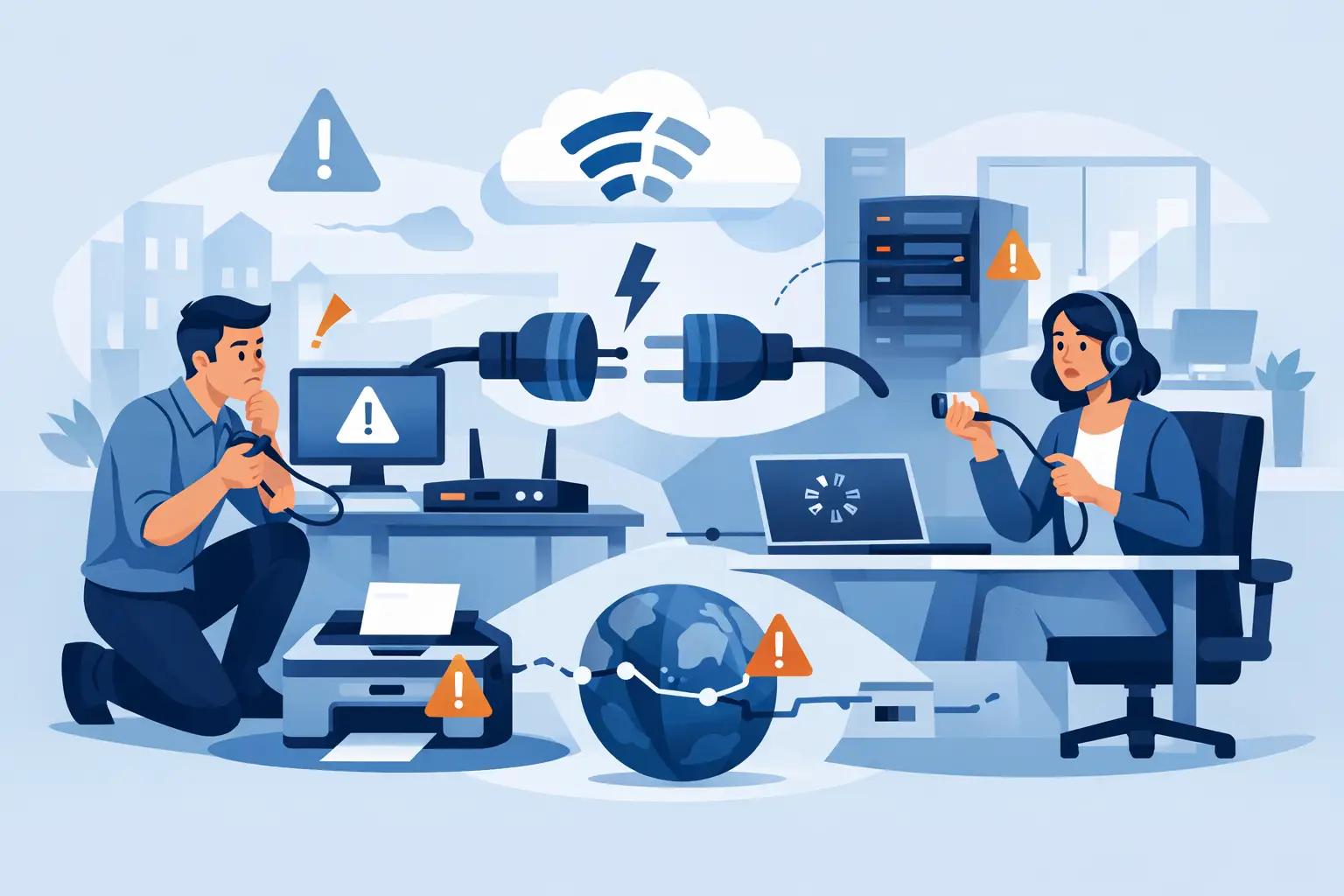
A video call freezes while the accounting system takes minutes to load. Employees move from desk to desk looking for a stronger Wi-Fi signal, and the phones may be affected next. When you need to troubleshoot office connectivity, the goal is not simply to get a device back online. It is to identify the source of the interruption, protect business systems, and restore productive operations without creating a second problem.
For a small or midsize business, connectivity issues can originate from a single laptop, a wireless access point, a network switch, an internet provider outage, an overloaded connection, or a security setting that is doing exactly what it was designed to do. A calm, methodical process prevents lost time and helps your team communicate clearly with IT support or outside vendors.
Start by Defining the Scope of the Problem
The first question is simple: who is affected? If one employee cannot connect while nearby colleagues are working normally, the issue is likely isolated to that device, its network settings, its cable, or its assigned user permissions. If an entire department is offline, investigate the local network equipment serving that area. If the whole office has lost internet access, the issue may involve the firewall, modem, router, provider, or a power interruption.
Ask employees what they can and cannot access. For example, they may still reach shared files on an internal server but not websites or cloud applications. That points toward an internet or DNS issue rather than a total network failure. If they can browse the internet but cannot reach a specific business application, the application provider, user credentials, VPN, or security policy may be the real cause.
Document the time the issue began, the locations involved, the systems affected, and any recent changes. A new phone system, software update, office move, ISP maintenance notice, or recently installed device can all provide useful context. This information shortens troubleshooting time and gives your technology partner a clearer starting point.
Check the Physical Layer Before Changing Settings
Many office connectivity failures have a straightforward physical cause. A loose Ethernet cable, disconnected power adapter, failed power strip, overheated network switch, or damaged access point can take users offline without warning.
Check whether network equipment has power and whether its indicator lights show a normal connection. A modem or router with no lights may have lost power. A switch with a single dark port may indicate a bad cable or an unplugged workstation. Do not rely on light patterns alone, since their meanings vary by manufacturer, but look for obvious changes from the normal state.
For an affected wired workstation, make sure the Ethernet cable is firmly seated at both ends. If possible, test with a known-working cable or connect the device to another active network port. For wireless users, confirm that Wi-Fi is enabled and that they are connected to the correct company network, not a guest network or a personal hotspot.
Avoid resetting every device at once. Restarting a modem, firewall, switches, and access points without a plan can erase useful clues, interrupt calls, and complicate the timeline. If a reboot is necessary, record what was restarted and when. Network equipment should also be restarted in the proper order when guided by IT support or the provider.
Separate Wi-Fi Problems From Internet Problems
Employees often describe every connection failure as “the Wi-Fi is down.” That can be true, but Wi-Fi and internet access are not the same thing. A device may have an excellent wireless signal yet be unable to reach the internet because the firewall, ISP connection, or DNS service is unavailable.
A quick comparison helps isolate the issue. Test a wired computer and a wireless device. If the wired computer works but multiple wireless users do not, focus on access points, wireless settings, coverage, capacity, or interference. If both wired and wireless devices cannot reach external sites, the problem is more likely upstream.
Wi-Fi quality can also vary by location and time of day. Conference rooms, warehouse areas, older construction materials, neighboring wireless networks, Bluetooth devices, and microwave equipment can interfere with a signal. A weak signal is not always the problem, however. In a busy office, too many devices competing for limited wireless capacity can create slow performance even when the signal bars look strong.
This is where professional network configuration matters. Adding another access point may improve coverage, but poorly placed or improperly configured equipment can create overlapping channels, roaming issues, or security gaps. The right solution depends on your office layout, user count, cloud applications, voice traffic, and expected growth.
Test the Internet Connection and Essential Services
If the entire office cannot access external resources, determine whether the internet provider is experiencing an outage. Check whether the modem indicates an active service connection and use an alternate connection, such as a mobile phone, to verify whether the provider has posted a known outage.
Before calling the ISP, gather your account information, service address, the time the outage started, and the status of the modem and router lights. Explain whether the issue affects all users, wired and wireless devices, phones, or only certain services. This helps avoid the common cycle of being transferred between an internet provider, phone vendor, and software vendor while your team waits for answers.
If your office uses cloud phones, remember that voice quality is highly sensitive to latency, jitter, and packet loss. Internet access may appear normal for email and web browsing while calls become choppy or drop. Large file uploads, cloud backups running during business hours, video meetings, and guest traffic can all compete with voice traffic. A properly managed network can prioritize critical communications instead of treating every connection equally.
Review Device, Access, and Security Issues
When a single user is affected, start with the device. Restart the computer, reconnect to the approved network, and verify that airplane mode is off. If the device repeatedly asks for credentials or connects briefly before disconnecting, its saved wireless profile, driver, certificate, or account permissions may need attention.
Remote employees and traveling staff may also need a functioning VPN to reach internal systems. If the internet works but internal resources do not, confirm that the VPN is connected and that multi-factor authentication has been completed. Do not ask users to bypass security controls as a quick fix. A blocked connection may be the result of a legitimate threat detection, expired credential, or access policy designed to protect sensitive data.
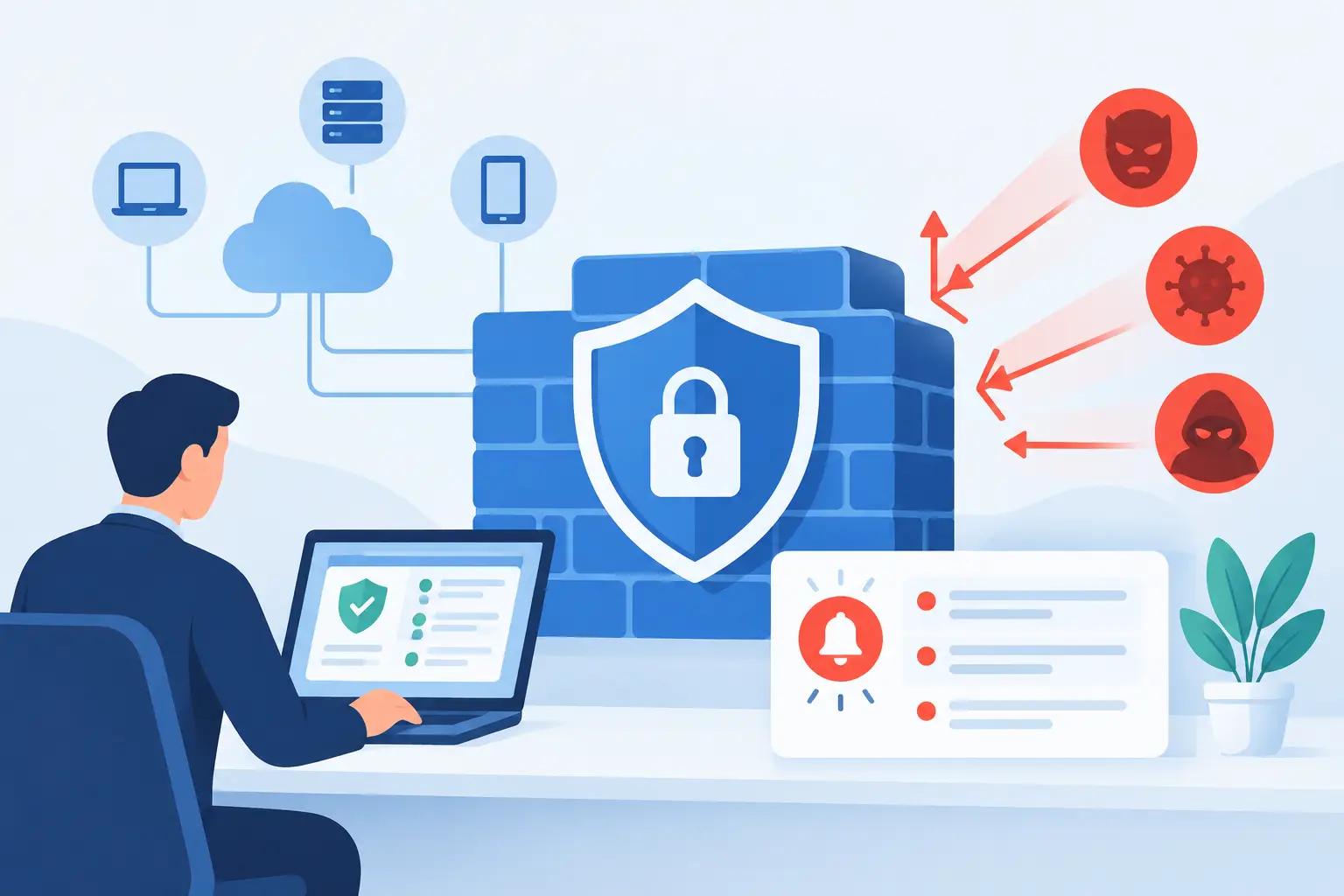
Security tools can affect connectivity, particularly after a policy update or when suspicious traffic is detected. The answer is not to turn off endpoint protection or firewall rules broadly. Instead, have qualified IT support review alerts, logs, and recent changes to determine whether the block is appropriate or whether a trusted business service needs to be allowed.
Know When to Escalate the Issue
Basic checks are useful, but some situations call for immediate professional support. Escalate quickly when an outage affects multiple employees, phones, payment systems, customer-facing applications, shared files, or security tools. The same applies if you see unusual login prompts, unknown devices on the network, repeated disconnections, or signs that a ransomware or phishing incident may be involved.
A managed IT partner can review firewall events, switch ports, wireless controller status, bandwidth usage, DNS records, and device health without asking employees to guess at technical settings. TechFusion also coordinates with internet, phone, and application vendors, giving your business one accountable point of contact when the source of an outage is unclear.
Prevent the Next Office Connectivity Disruption
The best time to improve a network is before the next outage. Regular monitoring can identify failing equipment, bandwidth saturation, unstable wireless access points, and unusual traffic patterns early. Documentation matters too: your business should know which provider supports each circuit, where equipment is located, who has administrative access, and how to reach support after hours.
A resilient office setup may include backup internet service, managed Wi-Fi, battery backup for critical network equipment, network segmentation for guests and devices, and documented recovery procedures. Not every business needs every layer on day one. A medical office with cloud records, a law firm handling sensitive documents, and a retail location processing payments will have different priorities.
When connectivity fails, give your employees one clear process: report what is affected, where they are located, when it began, and any error message they see. That simple habit turns a frustrating interruption into useful diagnostic information and helps restore the confidence your team needs to keep serving customers.