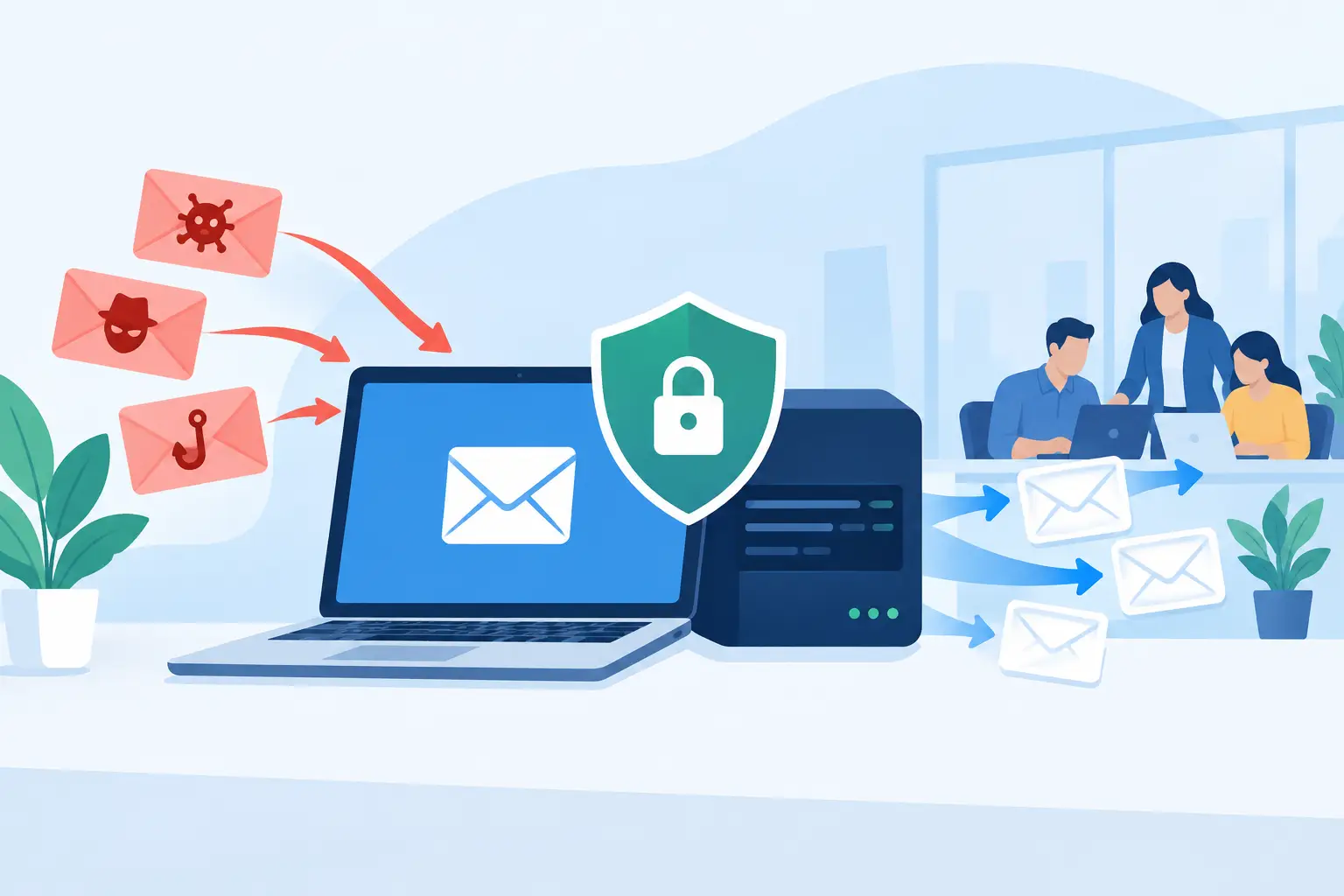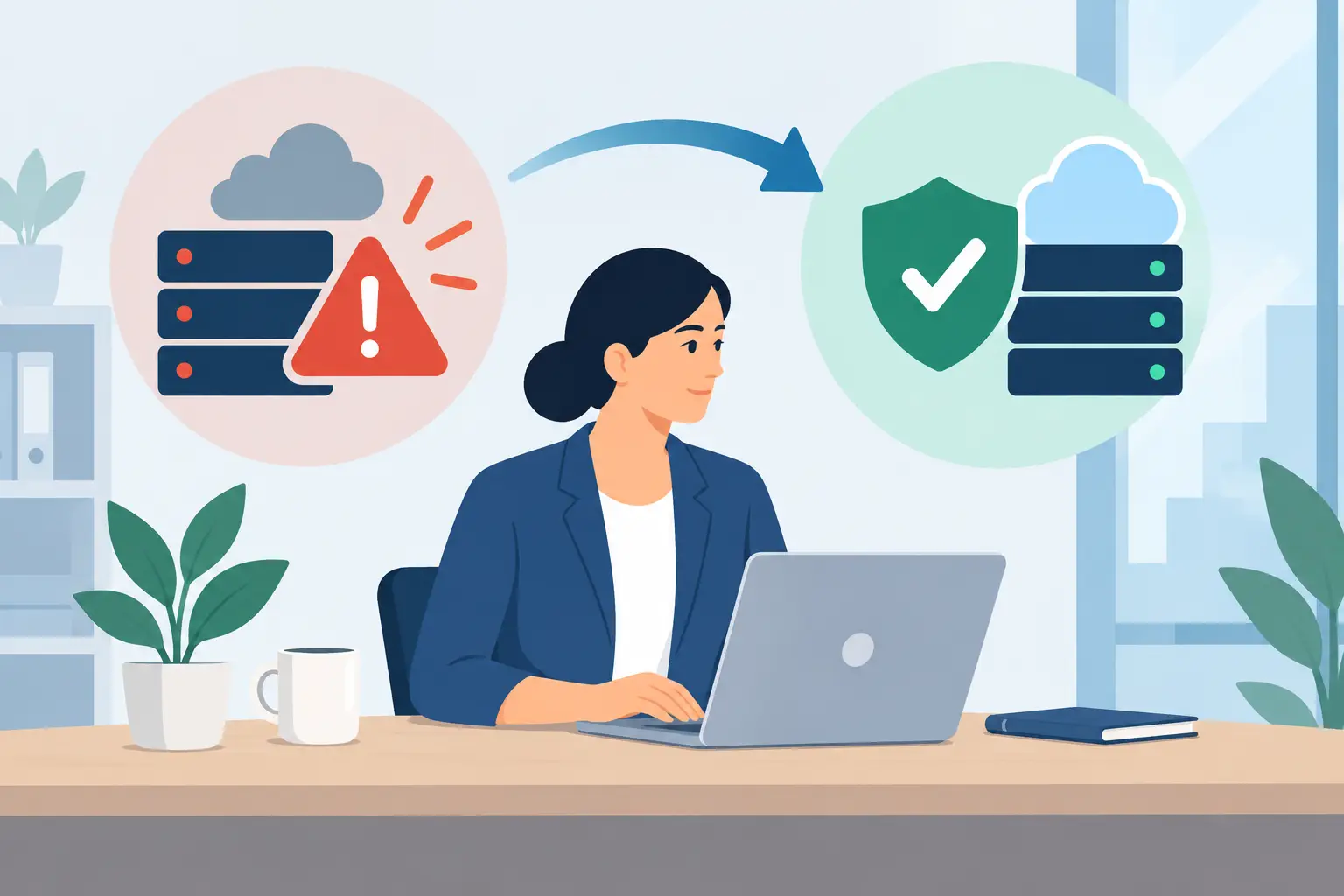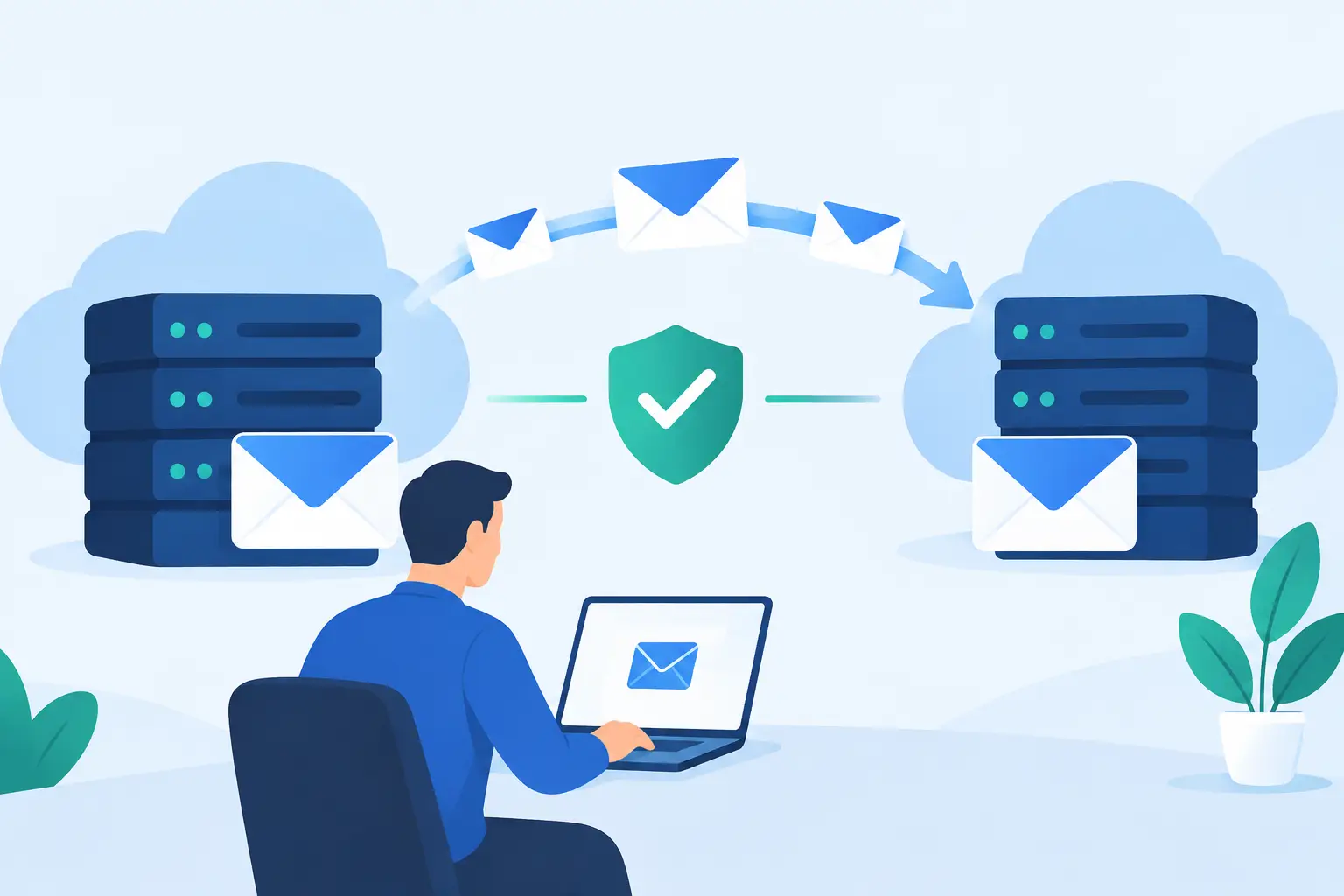
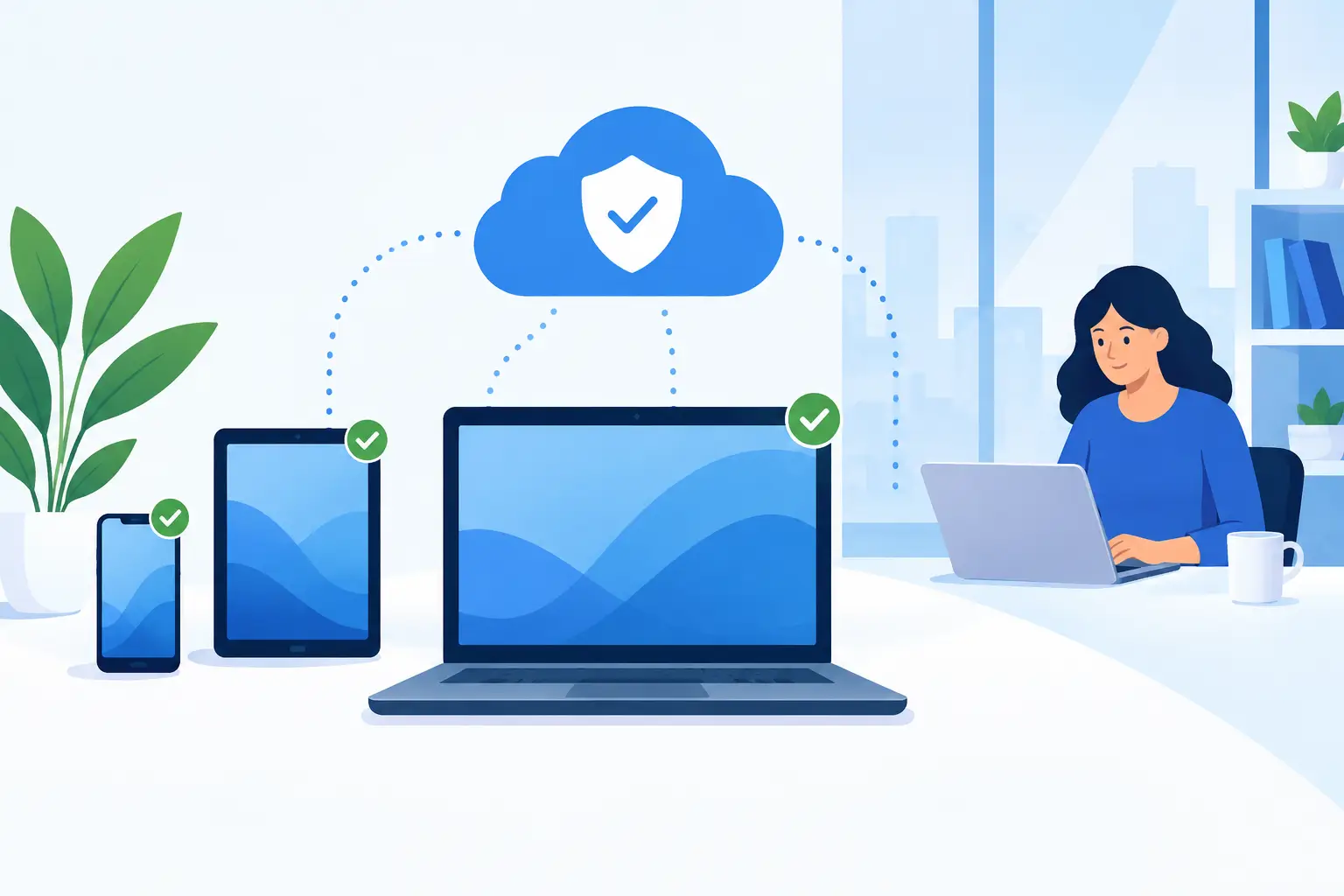
A new employee starts Monday morning, but their laptop has not been configured, their account access is unclear, and no one knows whether the device has current security updates. What should be a productive first day becomes a string of support calls. Effective device management prevents this kind of disruption by giving your business control over the technology employees rely on every day.
For small and midsize businesses, devices are not simply office equipment. They are entry points to email, customer information, accounting platforms, cloud files, phone systems, and internal communication. When they are managed inconsistently, a lost laptop, outdated computer, or former employee’s active account can become a security and operational problem.
What Device Management Means for Your Business
Device management is the ongoing process of tracking, configuring, securing, supporting, and replacing company technology throughout its lifecycle. That includes desktops, laptops, mobile devices, tablets, monitors, printers, and the software and accounts connected to them.
The word “management” matters. Buying a computer and handing it to an employee is not a management strategy. A business needs to know who has the device, what data it can access, whether it is protected, and what happens when the employee changes roles or leaves the company.
For a growing organization, this work can easily become fragmented. One department may purchase laptops independently. A manager may keep passwords in a spreadsheet. Employees may use personal phones for work without clear rules. The result is often higher support costs, inconsistent security, and avoidable downtime.
A structured approach creates order without making technology harder for employees to use. It gives leadership visibility while allowing staff to get help quickly when something goes wrong.
Why Device Management Reduces Business Risk
Most technology interruptions do not begin with a major system failure. They begin with routine issues that were not addressed early: a device running an unsupported operating system, a missed software update, a weak password, a damaged hard drive, or an employee account that was never removed.
Managed devices allow businesses to address these issues proactively. Security updates can be applied on a schedule. Antivirus and endpoint protection can be monitored. Backup requirements can be confirmed. Devices that are nearing the end of their useful life can be identified before they fail during a busy workday.
This approach also supports accountability. When every company-owned device is documented, it is easier to investigate suspicious activity, recover equipment after an employee departure, and plan technology spending. Rather than replacing computers only when they stop working, leaders can budget for refreshes based on age, performance, and employee needs.
There is a practical trade-off to consider. Very strict device controls can frustrate employees if they prevent legitimate work or delay access to needed tools. On the other hand, loose policies can expose the business to unnecessary risk. The right level of control depends on your industry, the sensitivity of your data, whether employees work remotely, and how much technology support your team needs.
Build a Reliable Device Management Foundation
A strong program starts with accurate information. Many businesses have a general idea of what equipment they own, but not a complete record of serial numbers, assigned users, warranty dates, installed software, or device condition. Without that visibility, support becomes reactive.
Maintain a Current Device Inventory
Your inventory should identify every business-owned device, the employee or location assigned to it, its operating system, its age, and its access level. It should also note whether the device is encrypted, protected by endpoint security, and included in your backup plan where applicable.
This does not need to become a burdensome manual process. The goal is to create a dependable source of information that is updated when equipment is issued, transferred, repaired, or retired. When an employee calls with a problem, support personnel should be able to see the device history rather than start from scratch.
Standardize Devices and Configurations
Standardization is one of the fastest ways to improve support quality. When employees use a limited number of approved computer models, operating systems, and software configurations, issues are easier to diagnose and resolve. It also makes replacement devices faster to prepare.
That does not mean every employee needs identical equipment. An accounting employee, a remote salesperson, and a graphic designer may have different requirements. The goal is to establish approved device profiles for common roles, with the right hardware, software, permissions, and security settings for each one.
Standard configurations also reduce surprises. A new laptop can arrive with approved applications, email access, security tools, and network settings already in place. Employees spend less time waiting for setup and more time doing their jobs.
Apply Security Controls Consistently
Devices should have the same baseline protections whether they are used in the office, at home, or while traveling. At a minimum, this typically includes current operating system updates, endpoint protection, device encryption, secure passwords, multifactor authentication, and restricted administrative access.
Remote work adds another layer of consideration. Employees may connect through home networks, public Wi-Fi, or personal devices. In those situations, businesses need clear rules about what data can be accessed, how files are stored, and how lost or stolen equipment is reported.
The right tools can allow an organization to locate, lock, or erase a company device when needed. Those capabilities should be used thoughtfully, with clear employee policies and an understanding of privacy expectations, especially when personal devices are involved.
Device Management for Employee Transitions
Employee onboarding and offboarding are two of the most visible tests of an IT process. When technology is ready on day one, new employees gain confidence and managers avoid scrambling. When access is removed promptly at departure, the business protects its systems and data.
Make Onboarding Repeatable
A repeatable onboarding process should begin before the employee arrives. The hiring manager and IT team should know the person’s role, start date, software needs, phone requirements, and access permissions. That information determines the correct device profile and prevents last-minute confusion.
The employee should receive a prepared device, working credentials, a clear way to request support, and basic guidance on security expectations. For some roles, setup may include access to cloud applications, shared drives, business phone tools, or specialized software. A documented workflow makes these steps consistent even when several employees start at once.
Treat Offboarding as a Security Process
When someone leaves, collecting the laptop is only one part of the process. Their accounts, email access, cloud storage permissions, phone applications, virtual private network access, and shared credentials must be reviewed. Company files should be preserved, and the device should be inspected before it is reassigned or retired.
Timing matters. In some cases, access needs to end immediately. In others, a transition period is appropriate. HR, operations, leadership, and IT should agree on the process in advance so the response is orderly and respectful while still protecting the business.
Know When to Repair, Replace, or Retire
Keeping devices too long often costs more than replacing them. Older computers may require frequent support, struggle with current software, and create employee frustration. They can also be harder to secure if the manufacturer no longer supports the operating system or hardware.
At the same time, replacing equipment prematurely is not always a wise use of budget. The best decision depends on device performance, repair history, warranty status, employee role, and the cost of lost productivity. A device used for simple office applications may remain useful longer than a workstation used for design, data analysis, or video production.
A replacement plan turns these decisions into a predictable business expense. Instead of facing a sudden wave of failed laptops, leadership can refresh a portion of equipment each year and keep standards current.
Choose the Right Support Model
Some businesses have an internal employee who coordinates devices and vendors. Others rely on outside support for monitoring, setup, troubleshooting, and lifecycle planning. Either approach can work, but responsibility must be clear.
If device tasks are added informally to an operations manager’s workload, important details can be missed during busy periods. A managed IT partner can provide structure by monitoring device health, responding to user issues, coordinating warranties and vendors, and maintaining consistent security practices. TechFusion supports businesses that need this ongoing accountability rather than a one-time installation and a handoff.
The best model gives employees a simple path to help while giving business leaders confidence that someone is watching for issues before they interrupt operations.
Measure What Is Improving
Device management should produce visible business results. Track how long it takes to prepare a new employee’s equipment, how often devices generate support requests, how quickly critical updates are applied, and how many assets are fully documented. These measures reveal where process improvements are working and where gaps remain.
Also pay attention to employee experience. If users regularly bypass security controls or struggle to access approved tools, the problem may be the process rather than the employee. Good technology management protects the business without creating unnecessary friction.
A well-managed device should fade into the background of the workday. Employees should be able to sign in, communicate, access the tools they need, and get responsive help when something changes. That quiet reliability gives your team more time to serve customers, pursue growth, and keep the business moving forward.