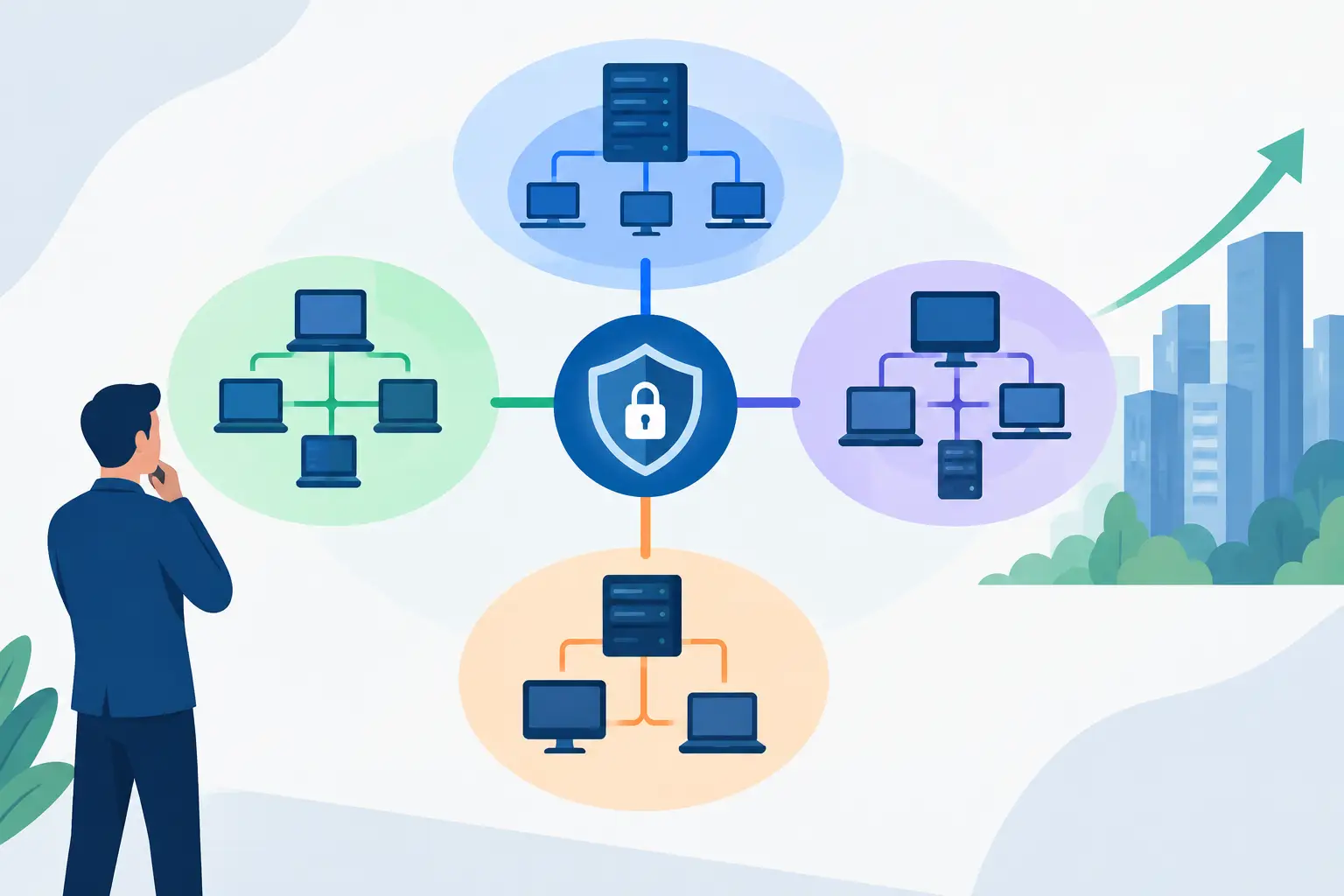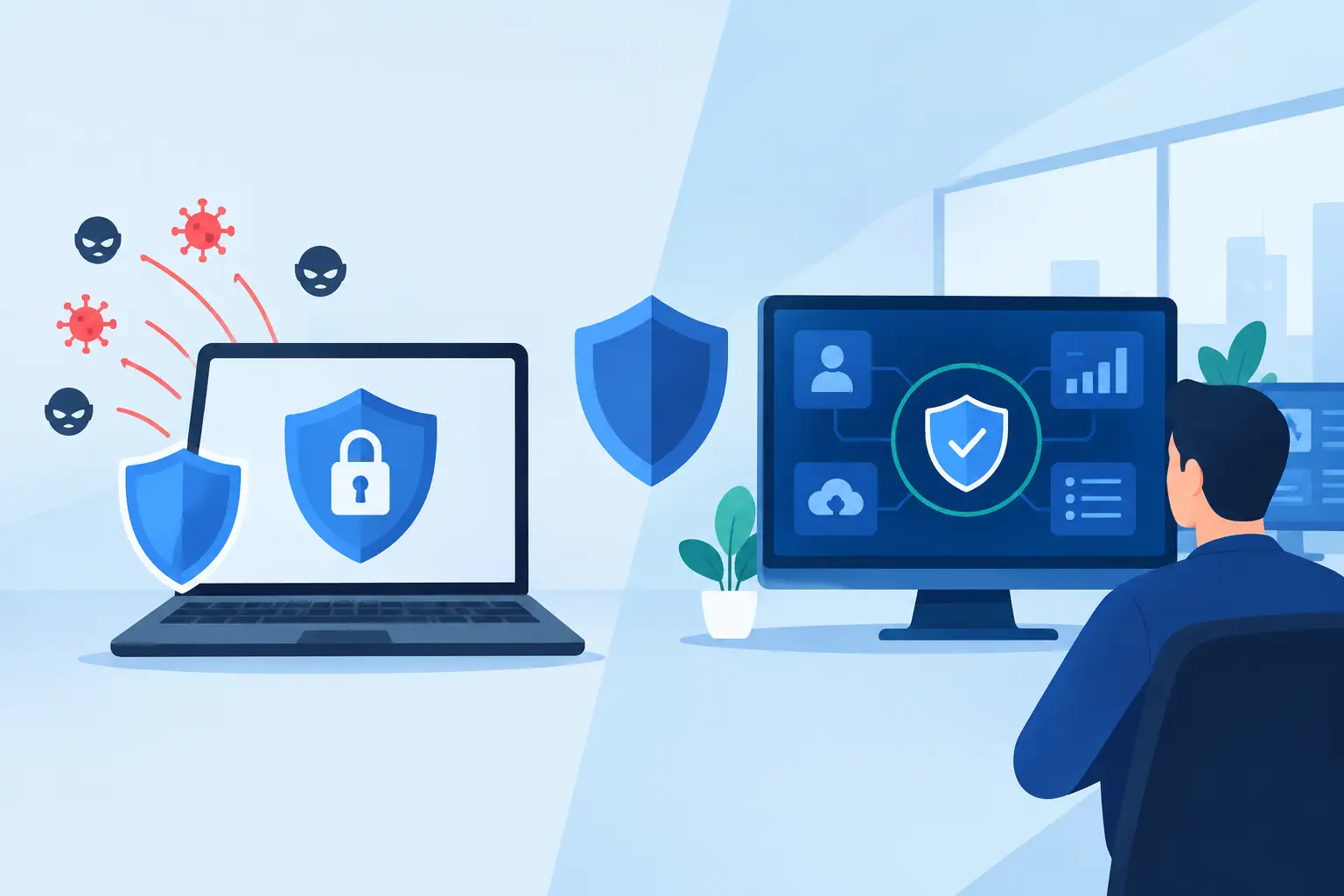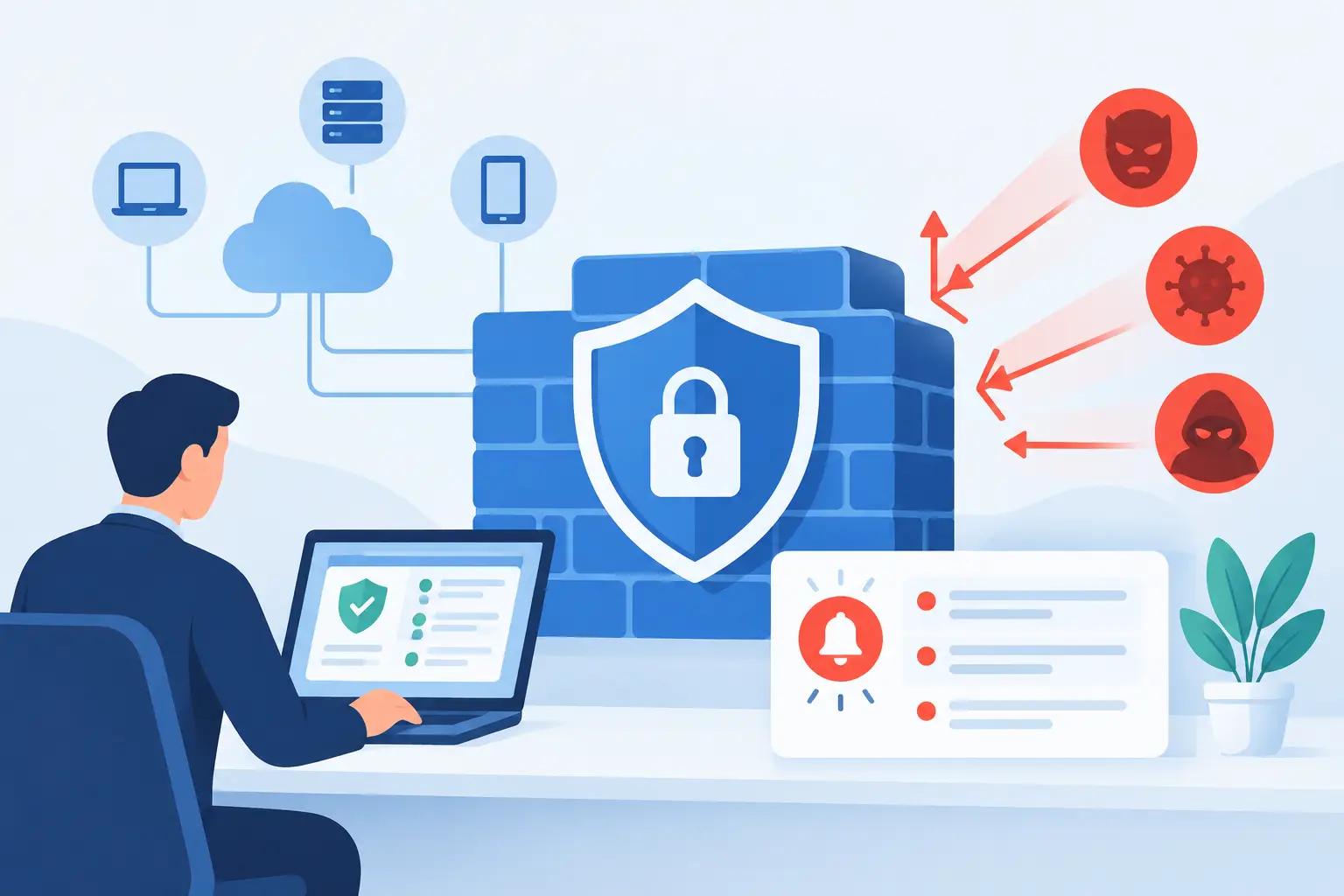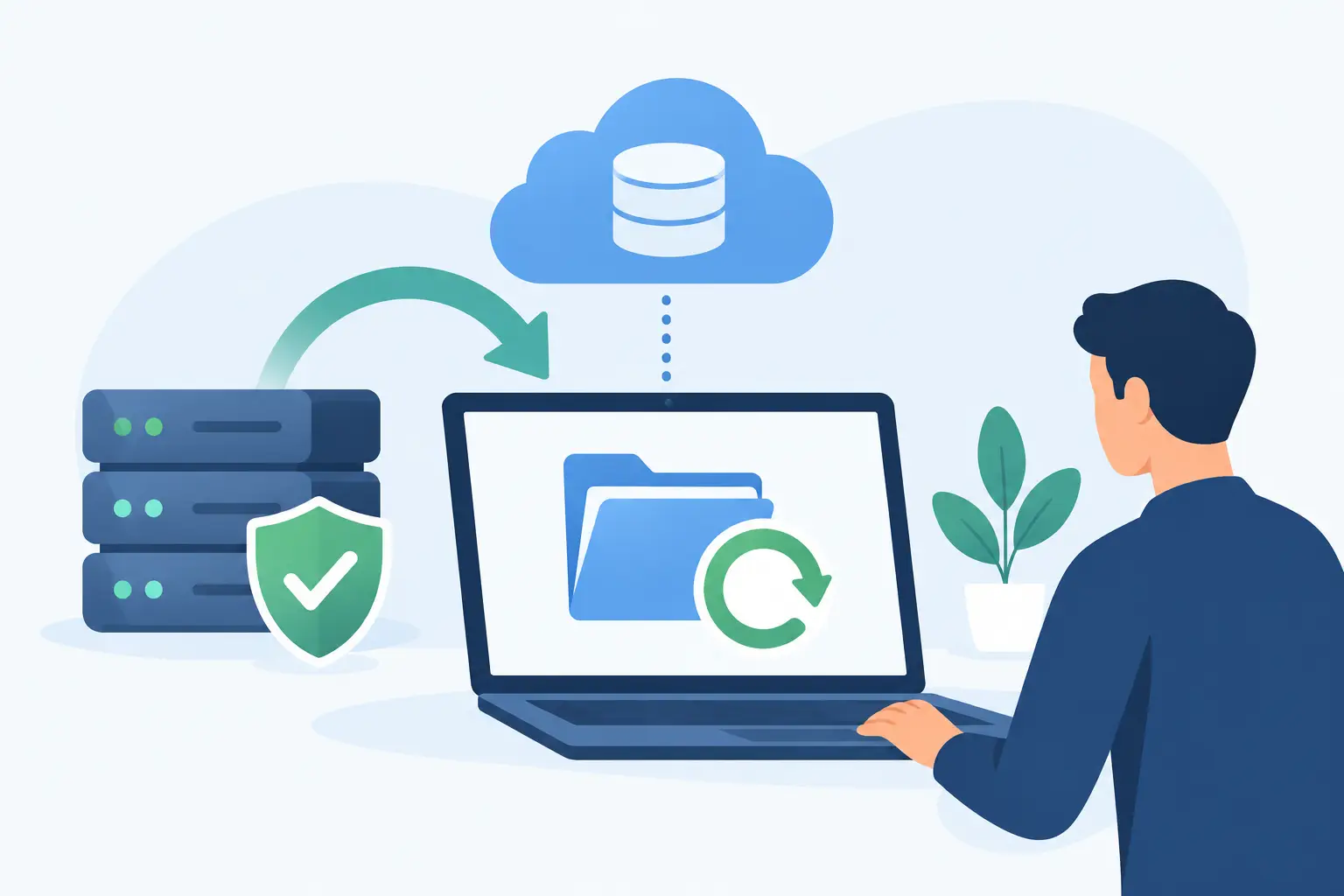
A laptop used from a kitchen table can hold the same client records, financial files, passwords, and business conversations as a computer inside your office. That is why secure remote work devices are not simply an IT preference. They are a business continuity requirement for organizations that depend on employees to work from home, travel between locations, or respond after hours.
For a small or midsize business, one unprotected device can create a costly chain reaction: a compromised email account, a ransomware incident, missed work, and difficult client conversations. The goal is not to make remote employees jump through unnecessary hoops. It is to give them dependable equipment, clear expectations, and support that protects the business without getting in the way of their work.
Why Secure Remote Work Devices Matter to Business Operations
Remote work expands the places where business data can be accessed. Employees may connect through home Wi-Fi, hotel networks, personal printers, shared family computers, or mobile hotspots. Each situation introduces variables your office network does not have.
The biggest risk is often not a sophisticated attack. It is an ordinary moment: an employee postpones an update, reuses a password, loses a laptop in a car, or signs in to a convincing fake Microsoft 365 page. Without the right protections already in place, one mistake can give an attacker a path into company email, cloud storage, accounting platforms, or customer information.
Device security also affects productivity. A remote employee with an aging computer, limited storage, unreliable Wi-Fi, or no way to reach support can lose hours to issues that should have been prevented. Standardizing devices and managing them proactively gives leaders better visibility while giving employees a more consistent experience.
A Practical Standard for Secure Remote Work Devices
A good remote-device program begins with a simple question: can the business identify every device that accesses company systems, who is using it, and whether it meets security standards? If the answer is no, start there.
Company-owned computers are usually the best choice for employees handling sensitive data, administrative access, financial records, or client information. The business can configure, monitor, update, recover, and retire those devices as needed. Personal devices may work for limited situations, but they require tighter boundaries. A bring-your-own-device arrangement should never mean that personal laptops receive unrestricted access to every company system.
The right standard depends on your industry, the sensitivity of your data, your team size, and how often employees work away from the office. A construction company with field supervisors has different needs than a healthcare practice, law firm, or professional services team. Still, several protections belong in nearly every environment.
Start With a Managed, Encrypted Device
Every business device should have full-disk encryption enabled. If a laptop is lost or stolen, encryption helps prevent someone from removing the drive and reading its contents. It is a basic control with significant value, especially for employees who travel or work from public locations.
Devices should also be enrolled in centralized management. This allows your IT team to apply settings, confirm security updates, install approved software, locate devices when appropriate, and remotely lock or erase a lost machine. Central management turns a collection of laptops into an environment the business can actually support.
Automatic operating system, browser, and application updates are equally important. Cybercriminals frequently target known vulnerabilities after a fix is available. Delayed patching leaves an open door that is often easy to close.
Protect Identity, Not Just the Laptop
A secure device cannot compensate for a weak sign-in process. Email and cloud accounts are prime targets because they can reset passwords for other systems and expose a large volume of business information.
Require multifactor authentication for email, cloud storage, remote access, accounting applications, and any platform containing sensitive information. A password alone is no longer enough, particularly when employees use the same account from several locations.
Use a password manager to help employees create and store unique, complex passwords. This reduces the temptation to reuse credentials or keep passwords in browsers, spreadsheets, notebooks, and text messages. For teams with elevated access, conditional access rules can add another layer by restricting logins from unrecognized devices or risky locations.
Separate Work From Personal Activity
Employees should understand that business devices are for business use. Personal downloads, unapproved browser extensions, shared family access, and casual software installation can introduce security and support issues. A clear policy is more effective when it explains the reason behind the rule rather than treating every employee as a potential problem.
Where personal devices are permitted, limit access to approved apps and data rather than copying business files onto the device. For example, secure browser-based access or managed mobile applications may be a better fit than allowing local downloads of customer lists and internal documents.
This balance matters. Overly restrictive controls can encourage workarounds, while overly loose controls leave the company exposed. The best approach gives employees practical ways to do their jobs while placing stronger safeguards around the data and systems that matter most.
Build a Remote Device Policy Employees Can Follow
A policy should be short enough that people will read it and specific enough that managers can enforce it consistently. It should cover what equipment employees may use, how they must protect it, which networks are acceptable, where company data may be stored, and who to contact when something goes wrong.
For most small businesses, the policy should clearly require these five practices:
- Use company-approved devices and software for work involving business systems or sensitive data.
- Lock devices whenever they are unattended and use a strong password or biometric sign-in.
- Report lost devices, suspicious emails, unexpected login prompts, and possible malware immediately.
- Avoid public Wi-Fi for sensitive work unless a business-approved secure connection is in use.
- Save documents in approved cloud storage rather than on local desktops, personal drives, or personal email accounts.
The reporting requirement deserves special attention. Employees should never worry that reporting a suspicious click will get them in trouble. Fast reporting gives your support team a chance to reset credentials, isolate a device, review activity, and prevent a small issue from becoming a major disruption.
Support the Full Device Life Cycle
Security begins before the employee receives a laptop. New devices should be configured with approved applications, encryption, endpoint protection, account permissions, backups where appropriate, and security settings before they leave the office. This gives new hires a productive first day and avoids rushed setup decisions.
Ongoing support matters just as much. Devices need monitoring, patches, performance checks, and help desk assistance. Employees need a simple way to get help with a failed update, slow computer, VPN issue, printer problem, or suspicious message. When support is difficult to reach, people postpone reporting problems or attempt risky fixes on their own.
Offboarding is the other critical moment. When an employee leaves, the business should promptly disable accounts, recover company equipment, remove access to shared systems, preserve needed business records, and securely wipe devices before reassignment. Delayed offboarding creates unnecessary exposure, particularly when former employees retain access to email or cloud files.
TechFusion helps businesses manage this full cycle, from device setup and employee onboarding to cybersecurity monitoring, responsive support, and secure offboarding. The benefit is accountability: your team has a partner that keeps technology aligned with daily operations rather than handing over a new device and leaving you to manage the risk alone.
Do Not Overlook the Home Network
A secured laptop can still face problems on an insecure home network. Employees should change default router passwords, use WPA2 or WPA3 encryption, install router updates, and keep work devices off guest or shared networks when possible. These are manageable steps, but many employees will need clear instructions and occasional assistance.
Not every remote role needs the same network controls. A team member who only uses web-based scheduling software has a different risk profile than an executive with access to payroll, bank portals, and confidential contracts. Match the protections to the role, but do not let convenience become the reason sensitive access goes unprotected.
Reliable remote work is built before an employee needs it. Start by identifying the devices connected to your business, then establish a standard that protects accounts, data, and the people responsible for using them. A well-supported employee is more likely to work securely, report concerns quickly, and stay productive wherever the workday takes them.