
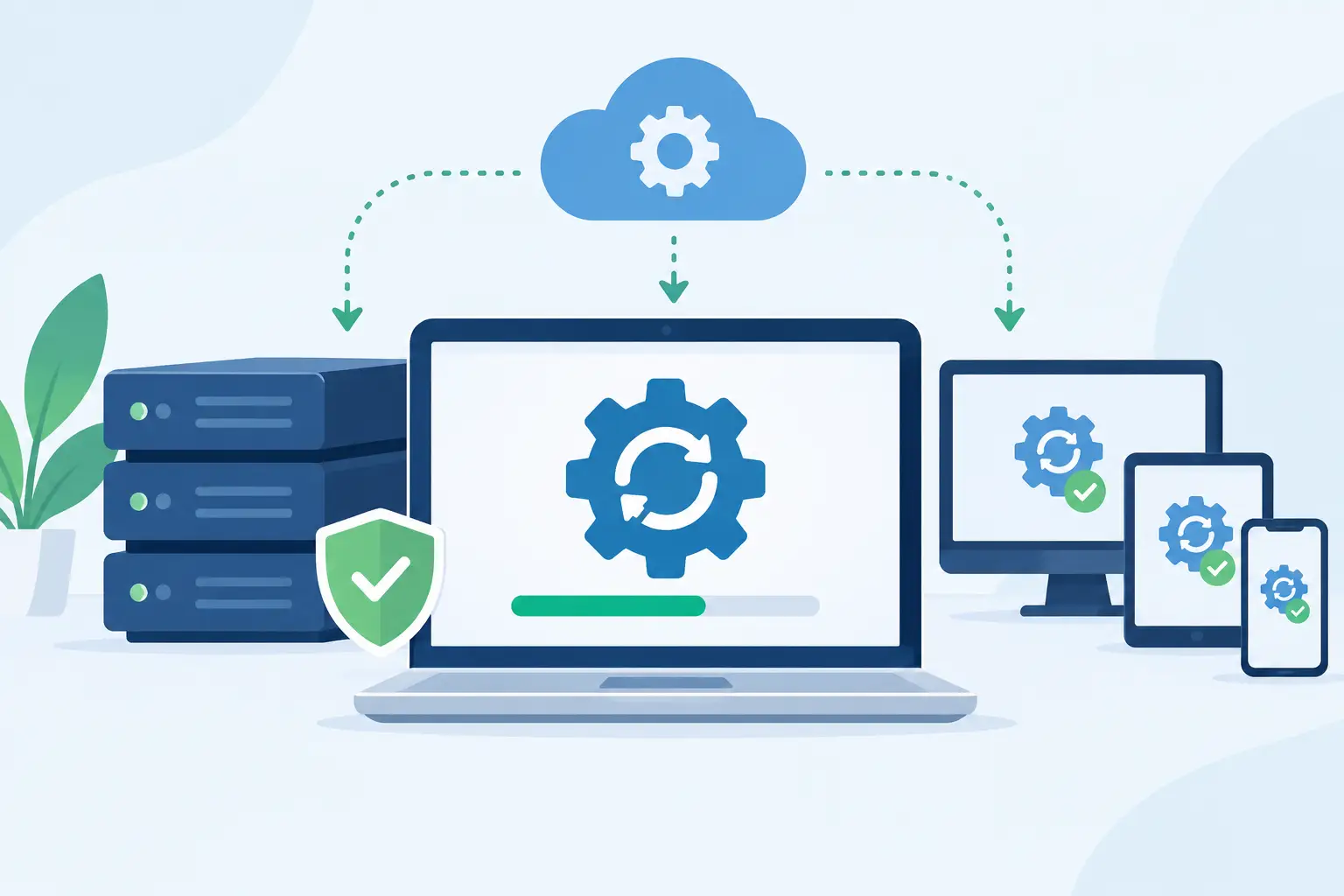
A critical vulnerability is announced on Tuesday. By Wednesday, your team is trying to determine which computers are affected, whether the vendor update is safe, and whether installing it will interrupt accounting, scheduling, or customer service. When you automate software patch deployment, that scramble becomes a managed process instead of a business disruption.
For small and midsize businesses, patching is often treated as a background IT task until an unpatched device causes a security incident, software failure, or compliance concern. The real value of automation is not simply installing updates faster. It is creating a dependable system that identifies risk, applies the right fixes, verifies success, and gives business leaders confidence that essential technology is being actively managed.
Why Patch Deployment Deserves a Business Process
Software patches correct security weaknesses, fix defects, improve reliability, and sometimes add functionality. They apply to more than Windows or macOS updates. A complete patching program can include browsers, productivity applications, PDF readers, remote-access tools, antivirus platforms, servers, network devices, and third-party business software.
Attackers commonly target known vulnerabilities because they know many organizations delay updates. A patch that sits uninstalled for weeks can leave a door open long after the vendor has provided a fix. At the same time, installing every update immediately across every device is not always wise. A patch can conflict with a line-of-business application, require a restart at the wrong time, or behave differently on older hardware.
That is why effective patch management balances speed with control. The goal is to reduce exposure without creating avoidable downtime for your employees or customers.
How to Automate Software Patch Deployment Safely
Automation works best when it follows policies your business can understand and approve. Software should not update at random hours with no visibility. It should update according to defined priorities, maintenance windows, testing steps, and escalation procedures.
Start with an accurate device and software inventory
Automation cannot protect systems that are unknown or unmanaged. Begin by identifying every company-owned laptop, desktop, server, and network-connected device. Include remote employees, loaner computers, and equipment used at satellite offices.
Then document the software that matters most. This includes operating systems and common applications, but it also includes specialized tools such as accounting platforms, medical or legal applications, point-of-sale software, design tools, and browser extensions used for daily operations. An accurate inventory helps your IT partner determine what needs updates and which systems require extra care.
For businesses with a bring-your-own-device policy, the answer may differ. You may not have authority to manage every personal device fully, but you can still establish minimum security requirements for access to company email, cloud files, and internal systems.
Classify updates by urgency
Not every patch belongs in the same deployment schedule. A practical policy typically separates updates into categories based on security impact, operational importance, and testing needs.
Critical security patches for actively exploited vulnerabilities may need expedited deployment, sometimes within hours or days. High-priority updates should follow shortly after testing. Routine updates can often be installed during a regular weekly or monthly maintenance window. Feature upgrades, which may change the way employees use software, usually deserve more planning and communication.
This approach prevents two common mistakes: treating every update as an emergency and allowing serious security fixes to wait behind routine maintenance. The right timeline depends on your industry, insurance requirements, systems, and tolerance for interruption.
Test before broad deployment
A pilot group is one of the most useful controls in automated patching. Before releasing updates to the full organization, deploy them to a small group of devices that represents your normal environment. This might include a mix of departments, hardware types, remote users, and key applications.
Testing does not guarantee that a patch will never cause an issue. It does provide an early warning when an update affects printing, accounting software, VPN access, browser-based applications, or another critical workflow. If a concern appears, the update can be paused while the IT team investigates instead of becoming a company-wide problem.
For urgent vulnerabilities, testing may need to be brief. Even then, a controlled rollout and a clear rollback plan are safer than a blind deployment.
Set maintenance windows around the business
Employees are understandably frustrated when a computer restarts in the middle of a client call or a deadline. Patch automation should respect how your business operates.
Schedule most updates during low-use periods, such as evenings, early mornings, or planned maintenance times. Give employees notice when a restart is required, and allow reasonable deferrals for users handling time-sensitive work. Servers and network equipment may need separate windows because their maintenance affects more than one person.
A good patching policy also addresses devices that are offline during the scheduled window. Remote laptops may need to install updates when they next connect, while still avoiding repeated interruptions during business hours.
Include third-party applications and firmware
Operating system updates are necessary, but they are only part of the picture. Browsers, Java components, PDF applications, collaboration tools, remote-support software, and other third-party products are frequent targets for attackers. If your automated process only manages Windows updates, your environment may still have significant gaps.
Firmware and network-device updates require more caution. Updates for firewalls, switches, wireless access points, and servers can be essential for security and stability, but they may involve service interruptions or configuration considerations. These changes should be planned, backed up, and monitored by qualified technicians rather than placed on an unattended schedule.
Reporting Turns Automation Into Accountability
The difference between installing updates and managing patching is visibility. Business leaders should be able to see whether devices are current, which patches failed, which systems are pending restart, and whether any high-risk vulnerabilities remain open.
Useful reporting should answer practical questions: Are all company laptops checking in? Did the latest critical updates install successfully? Which machines have fallen behind? Are there recurring failures on a certain device model or application?
Reports are also valuable for cyber insurance questionnaires, regulatory obligations, client security reviews, and internal planning. They show that your organization is taking reasonable, documented steps to protect its systems.
Automation should flag exceptions rather than hide them. A failed patch may result from a device being offline, insufficient disk space, a corrupted installation, or an application conflict. Each reason calls for a different response. A responsive IT team investigates the cause, resolves it, and confirms the device is protected.
Common Mistakes That Weaken Automated Patching
The most common error is assuming that automatic updates alone equal a patch-management strategy. Consumer-style auto-update settings can be helpful, but they rarely provide the oversight, deployment control, or reporting a business needs.
Another issue is excluding remote employees. If laptops only receive updates while connected to an office network, devices used at home or on the road can remain vulnerable for long periods. Cloud-based management tools can help ensure that systems receive policy-driven updates wherever employees work.
Businesses also run into trouble when there is no ownership. If everyone assumes another person is responsible for patching, no one reviews failures or responds to urgent vulnerabilities. A managed IT provider can provide that accountability by monitoring patch status, handling exceptions, and coordinating updates around business needs.
Finally, do not overlook backups. Patches are designed to improve systems, but any significant change carries some risk. Current, tested backups and a documented recovery process give your business options if a software update contributes to an unexpected outage.
When Managed Patch Deployment Makes Sense
Internal teams can manage patching effectively when they have the right tools, time, documentation, and technical depth. For many small and midsize organizations, however, patching competes with user requests, vendor calls, onboarding, network problems, and daily operational demands. It becomes reactive because there is simply too much else to handle.
A managed approach gives your business a defined patching cadence, ongoing monitoring, exception handling, and a team that understands your technology environment. TechFusion can help businesses establish policies that protect systems without treating employees like an afterthought.
The best patching program is usually quiet. Employees can work, leaders can see that risk is being managed, and IT issues are addressed before they turn into disruptive events. That consistency is what turns routine software updates into meaningful business protection.